
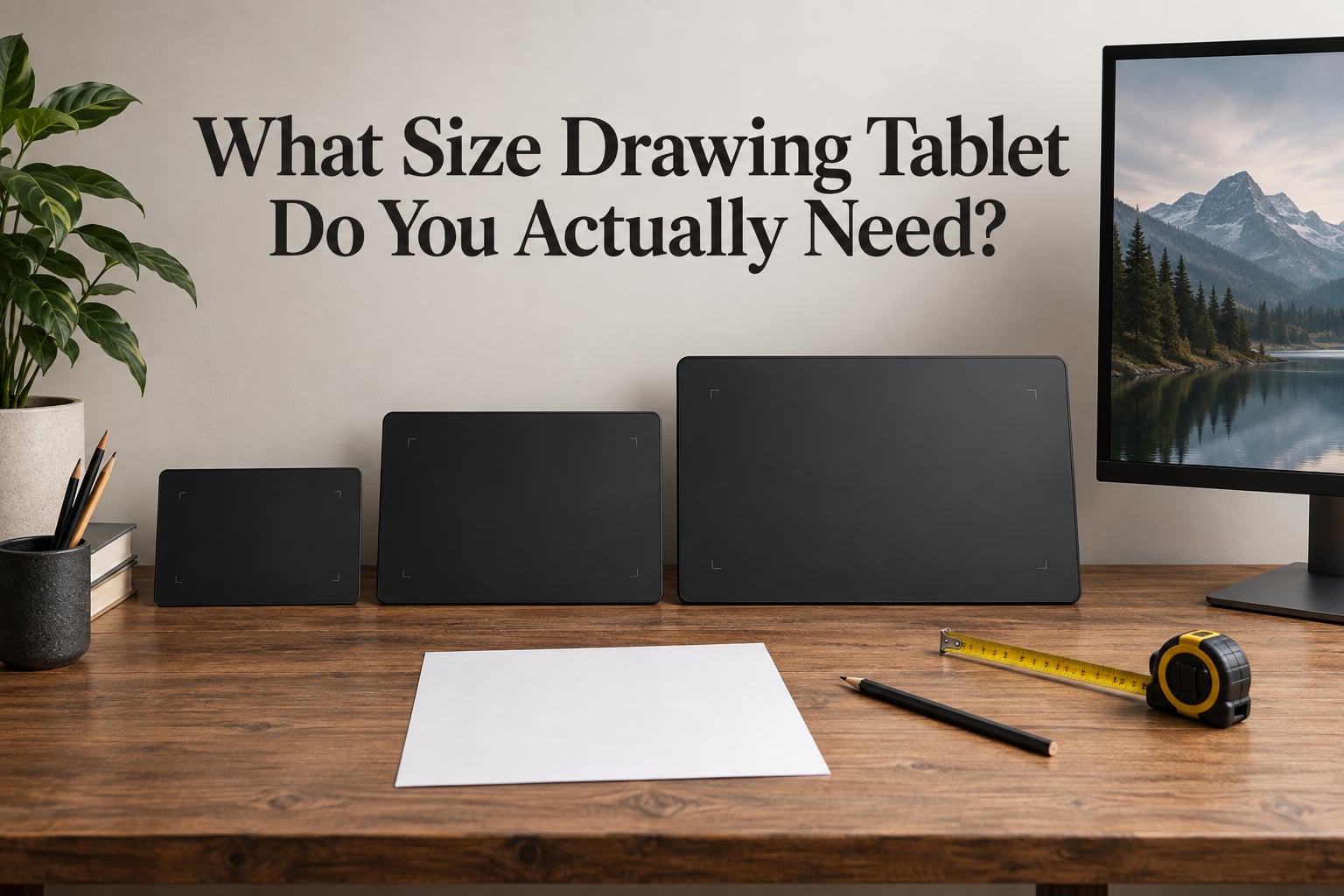
If you are searching for what size drawing tablet do you need, the honest answer is that the size you see printed on the box is not the number that matters. What matters is the active area, the drawing surface that actually responds to your pen, matched to the size of the monitor you will be looking at and the kind of arm movement you naturally make while drawing.
Most people land in the middle. A medium pen tablet with an active area around 10 x 6 inches works for the majority of setups, from a 13 inch laptop to a 32 inch desktop monitor. Go smaller only when portability is your real constraint, and go larger only when you are doing production work on a big screen or a pen display.
I have spent a lot of time comparing sizing advice across manufacturer guides, artist forums, and reviewer recommendations, and the same pattern keeps repeating: people who buy too small end up working harder than they should, and people who buy too large end up with a slab of plastic eating their desk. This guide breaks the sizing question into parts you can actually check, including paper size equivalents, monitor pairing, drawing style, and a cardboard test that costs nothing and prevents most returns.
Table of Contents
- The Short Answer: Medium for Most People
- What Size Actually Means: Active Area Explained
- Drawing Tablet Size Categories at a Glance
- Paper Size Equivalents for Intuitive Sizing
- Pen Tablet vs Pen Display: Size Means Two Different Things
- The Monitor Matching Rule: How to Pair Your Tablet to Your Screen
- Multi-Monitor Setups and Cursor Mapping
- Wrist vs Arm Movement: Match Size to Drawing Style
- Quick Recommendations by User Type
- Brand Naming Traps: When L Does Not Mean Large
- Handedness: Buttons, Cables and Hand Placement
- Anti-Glare Sparkle and Pixel Density by Display Size
- Desk Space, Portability and Ergonomics Reality Check
- Simulate Before You Buy: The Cardboard Test
- Software-Specific Sizing: CSP, Photoshop and Blender
- What You Give Up at Each Size Tier
- Post-Purchase Setup Checklist
- Frequently Asked Questions
- What is the perfect tablet size?
- Is a small drawing tablet too small for digital art?
- What size drawing tablet do I need for a 27 inch monitor?
- Is it better to get a drawing tablet with or without a screen?
- Should I get an 11-inch or 13 inch iPad for drawing?
- What size drawing tablet works with a 13 inch laptop?
- Does drawing tablet size actually matter?
- Final Verdict
The Short Answer: Medium for Most People
Here is the quick version, and the rest of the article explains the reasoning behind every line.
- Medium pen tablet, 10 x 6 inch active area: the safe default for 24 to 27 inch monitors and for anyone moving from beginner to intermediate work.
- Small pen tablet, around 6 x 4 inch active area: fine for note taking, sketching in coffee shops, and travel. Tight for full-canvas digital painting.
- Large pen tablet, around 13 x 8 inch active area: worth it for large monitors, illustration, sculpting, and multi-monitor workspaces.
- Pen display, 15 to 16 inch: the practical floor if you want to draw on the screen itself. 22 to 24 inch suits professional work.
- Standalone tablet around 11 inch: the option that travels well and needs no cable, at the cost of screen real estate.
Two rules explain most of the rest. First, a tablet that is much smaller than your monitor magnifies your hand movements, so fine detail feels twitchy. Second, a tablet that is much larger than your monitor makes you travel further across the surface than your arm wants to, which shows up as fatigue within a couple of hours.
What Size Actually Means: Active Area Explained
Active area is the rectangle of the tablet surface that senses the pen. It is smaller than the physical body of the device, because every tablet has a bezel, and it is the only number that describes the drawing space you actually get.
Sizes are usually quoted in two forms. The first is the width by height of the active area in inches, written as something like 10 x 6. The second is the diagonal across that rectangle, quoted as a single number such as 11.6 inch. Diagonal is convenient for marketing and for comparing two tablets with different aspect ratios, and it is a poor guide for guessing how much room your strokes will have.
To convert, multiply the width and height in inches, add them, square root the result, and you have the diagonal. A 10 x 6 active area works out to roughly 11.6 inch diagonally, and a 6 x 4 active area to roughly 7.2 inch. The range across current brands runs from about a 4.17 x 2.6 inch working area on the smallest models up to 27 inch pen displays, so there is a very wide spread of physical experience between the cheapest and most expensive options.
Terms you will meet on every spec sheet:
- Active area — the responsive drawing surface inside the bezel.
- Aspect ratio — the shape of that surface, commonly 3:2, 4:3, or 16:9. Mismatched ratios distort circles into ovals when mapped to a 16:9 monitor.
- Pressure levels — how many pressure steps the pen reports, commonly 4096 or 8192. Size does not change this.
- Resolution in LPI — lines per inch of sensor detail. Small areas with low LPI feel coarser under the nib.
- Report rate — how often the tablet reports position, usually 200 to 300 points per second. Again, independent of size.
Drawing Tablet Size Categories at a Glance
The industry has informal size tiers, and they line up fairly well across brands. These tiers describe pen tablets first, since that is where naming is most consistent, with the pen display equivalent alongside for reference.
| Tier | Active area (approximate) | Diagonal | Pen display equivalent | Best fit |
|---|---|---|---|---|
| Small | 6 x 4 inch | 7.2 inch | 10 to 12 inch | Travel, note taking, light sketching |
| Medium | 10 x 6 inch | 11.6 inch | 13 to 16 inch | Everyday drawing, 24 to 27 inch monitors |
| Large | 13 x 8 inch | 15.2 inch | 19 to 22 inch | Illustration, sculpting, big monitors |
| Extra large | 15 x 9 inch and up | 17.5 inch and up | 24 to 27 inch | Professional studios, multi-monitor desks |
Artists moving up from a small tablet to a medium one usually describe it as a night and day difference in comfort, and that reaction matches the numbers. A small active area gives you roughly half the linear room of a medium, so long strokes mean repeated pen lifts and re-anchoring.
Large tablets have a matching problem. Users who work on them for sessions of two hours or more commonly report shoulder and elbow fatigue, because the reach to the far corners keeps the arm extended instead of resting. Large is not better in the abstract; it is better only when your screen and your work genuinely need it.
Paper Size Equivalents for Intuitive Sizing
Active areas in inches and centimetres are hard to picture. Paper is not. Hold a sheet of A5 next to a medium tablet and the relationship becomes obvious in a second, which is why paper comparisons work so well in stores and why several buying guides lean on them.
| Paper size | Dimensions | Closest active area | Diagonal |
|---|---|---|---|
| A6 postcard | 4.1 x 5.8 inch | Small, 5 x 3 inch class | 7.1 inch |
| A5 notebook | 5.8 x 8.3 inch | Small to medium boundary, 6 x 4 inch | 10.1 inch |
| Half Letter | 5.5 x 8.5 inch | Small to medium boundary, 7 x 4 inch | 9.9 inch |
| A4 | 8.3 x 11.7 inch | Medium, 10 x 6 inch | 14.3 inch |
| Letter | 8.5 x 11 inch | Large, 12 x 7 inch class | 14.0 inch |
| A3 | 11.7 x 16.5 inch | Large, 13 x 8 inch class | 20.1 inch |
| Tabloid / Ledger | 11 x 17 inch | Extra large, 15 x 9 inch class | 20.2 inch |
The catch is aspect ratio. Paper is tall, tablets are wide, so a 10 x 6 active area holds roughly A4 area while being shaped nothing like it. When the driver maps that surface onto a 16:9 monitor, your circles stay circles and the paper comparison only holds for the total amount of room, not the shape.
Pen Tablet vs Pen Display: Size Means Two Different Things
On a pen tablet, size is about how far your hand travels. On a pen display, size is about how much of your screen you can see at once. That difference changes everything about how large you should go.
With a screenless tablet, a small active area is magnified against your monitor. A 6 x 4 inch surface across a 27 inch display means your hand covers a tiny fraction of the canvas, and cursor mapping has to scale your strokes up considerably to keep the drawing usable. Medium solves this because the stroke-to-screen ratio sits close to what your hand expects.
With a pen display, the hand and the cursor are in the same place, so magnification stops being an issue. The new problem is parallax, the visual offset between the pen tip and the drawn point caused by viewing angle, plus the sheer physical weight of a large panel. A slim 15 to 16 inch display is the practical floor for serious drawing, and 22 to 24 inch is where professionals land once they are drawing full time.
One rule of thumb: buy the pen tablet first if you are unsure. A medium pen tablet paired with a 24 or 27 inch monitor is the configuration the largest number of artists settle on, and it is easier to upgrade to a display later than to unlearn habits built on a cramped surface.
The Monitor Matching Rule: How to Pair Your Tablet to Your Screen
The matching rule is simple: the tablet should feel like a plausible physical stand-in for the part of the screen you are working on. Most people work on the full canvas, so match the tablet’s active area to the monitor’s usable screen area, not to the physical diagonal of the panel.
| Your screen | Recommended pen tablet active area | Reason |
|---|---|---|
| 13 inch laptop | 7 x 4 to 10 x 6 inch | Screen is small, so a small tablet already covers it proportionally |
| 15 or 16 inch laptop | 8 x 5 to 10 x 6 inch | Medium gives stroke room without crowding a compact desk |
| 19 to 22 inch monitor | 9 x 6 to 11 x 7 inch | Close to area parity, low magnification |
| 24 inch monitor | 10 x 6 inch | The most commonly reported sweet spot in artist forums |
| 27 inch monitor | 10 x 6 to 13 x 8 inch | Medium works, large is more comfortable for long sessions |
| 32 inch monitor | 13 x 8 inch or larger | Smaller tablets feel cramped against a very large canvas |
| Two monitors, 24 plus 27 inch | 13 x 8 inch | Larger surfaces reduce the number of trips between screens |
If you want the mathematical version, measure the monitor’s usable drawing area, usually the screen minus the taskbar, then compare it to the tablet’s active area in the same units. Ratios near 1:1 feel neutral. Ratios of 1:2 mean you are moving twice the pen distance for the same result, which reads as sloppiness. Ratios of 2:1 mean you are working far more screen area than your hand covers, which reads as sluggishness.
Multi-Monitor Setups and Cursor Mapping
Dual-monitor workspaces are where sizing advice usually goes quiet, and they are also where sizing mistakes hurt most. The key decision happens in the driver, not in the tablet.
- Extended mode gives the tablet a defined area on one screen only. Everything you draw appears in that window, and your hand covers a small share of it. Size this one like a single-monitor setup for the screen you work on.
- Mirrored mode lets you draw on any screen or across both. The tablet area is duplicated, so your strokes land wherever the cursor is, which suits general desktop use and remote collaboration more than precise illustration.
- Multi-screen mode maps the tablet to a selected screen or a slice of the desktop. This is the right choice for animators who keep references on one display and the canvas on the other.
For a 27 inch plus 32 inch pairing, forum discussions consistently land on a large active area around 13 x 8 inch. Artists report that the extra room means fewer large shoulder moves when they are checking references on a second screen, and less of that creeping fatigue that builds over a long session. Whichever mode you choose, set the mapping area before you judge the tablet, because an incorrectly scaled area will make a good tablet feel wrong.
Wrist vs Arm Movement: Match Size to Drawing Style
Your drawing style predicts your ideal size better than your experience level does. Watch yourself for a minute and the answer is usually obvious.
- Fingers and wrist movement suits small active areas. Sketchers, note takers, and anyone working in tight zoomed views do well on 6 x 4 inch.
- Wrist and forearm movement is the standard for illustration and is exactly what a 10 x 6 inch surface trains. Medium tablets are built for this range.
- Elbow and shoulder movement wants a large active area, typically 13 x 8 inch or more. Full-figure illustration, environment work, and sculpting all benefit.
There is a ceiling to this too. Very large active areas push toward shoulder-led movement whether you want it or not, and that is where the two-hour fatigue reports come from. If you notice yourself shrugging or holding your arm up in the air, the tablet is too large for your desk, your chair, or your working height.
Quick Recommendations by User Type
Here is how the sizing rules translate into a specific choice for common users.
Absolute Beginners
Start medium, 10 x 6 inch, if your monitor is 24 inch or larger. Beginners who start on small tablets report fighting the surface constantly, and the frustration gets blamed on skill rather than on sizing. If your screen is a 13 inch laptop, a 7 x 4 inch tablet is genuinely enough for the first few months.
Students and Note Takers
Prioritise how it carries rather than how big it is. A small tablet around 6 x 4 inch fits a standard laptop bag, and teachers doing whiteboard-style instruction report 10 x 6 inch as the minimum for comfortable writing, because handwriting strokes are longer than drawing strokes. If you are handwriting whole paragraphs, aim medium.
Digital Illustrators
Medium is the standard starting point and large is the destination for full-time work. The progression usually looks like this: medium while learning, large once commissions demand full-canvas compositions, or a 15 to 16 inch pen display if you dislike the hand-eye offset of a screenless tablet.
Animators
Medium to large. The work involves long sweeping lines, repeated onion-skinning, and frequent timeline scrubbing, and small surfaces make every one of those slower. Anyone animating on a 27 inch display usually reports being happier after moving up.
Photo Editors and Retouchers
Smaller is more acceptable here. Retouching is precision work on an already-magnified image, so a 6 x 4 inch surface handles most of it comfortably, and the free desk space is worth something. Move up to medium if you also paint into your images.
3D Artists and Sculptors
Large, or a mid-size pen display. Zoomed-in sculpting works on small tablets, but rotating a full model or working on a wide topology view benefits from room. Multi-screen mapping helps when the viewport and the reference sit on different displays.
CAD and Technical Drafters
Large active area, and a screen size to match. Technical line work rewards a long stroke, and a mismatched monitor exaggerates the problem in either direction. Set a fixed mapping area rather than switching between modes, since precision depends on a stable scale.
Video Editors
Medium. Scrubbing a timeline needs reach, and the small nudges used for audio work need precision, which medium handles better than either extreme.
Brand Naming Traps: When L Does Not Mean Large
Manufacturer size labels are not consistent across brands, and this is one of the most common sources of buying mistakes. The letter names used on many models, Small, M, L, and XL, map roughly to the size tiers in this article on a given product line, but the same letter on a different brand, or on a different generation, can mean something different.
The recurring community example is the XP-Pen Deco L, which belongs to the medium tier with an active area around 10 x 6 inches rather than to a large class. Readers who assume the letter is literal end up comparing it against a genuinely large tablet and choosing the wrong one for their monitor.
How to read any spec sheet safely: ignore the marketing name entirely, find the active area in inches, convert to a diagonal if you want to compare against another model, and then compare that against the paper table above. Two minutes with a calculator removes most of the ambiguity that model names create.
Handedness: Buttons, Cables and Hand Placement
Left-handed users run into three separate problems: express keys on the wrong side, the cable exiting toward the wrong edge, and pen holders positioned for the other hand. None of them require avoiding a size, but all of them are worth checking before ordering.
- Express keys: remap them in the driver to mirror the layout, or disable the ones you cannot reach. Some models also let you rotate the shortcut strip.
- Cable direction: check where the cable exits the body. On many models it leaves from one corner, and a 90 degree adapter keeps it out of your drawing space.
- Pen holder and stand: both are usually interchangeable, and the stand is the bigger issue because a bulky stand can push the tablet away from your reach.
- Driver support: confirm the brand ships a driver for your operating system, since remapping and mapping options live in the driver rather than in the hardware.
If you have reduced grip strength or an existing wrist condition, size interacts with health. A smaller surface keeps the hand closer to where it rests and reduces sustained reach, and a tablet too large will aggravate the problem rather than help it.
Anti-Glare Sparkle and Pixel Density by Display Size
Pen displays use matte coatings to cut reflections, and that coating produces a texture effect known as sparkle, a shimmering pattern visible in flat light. The effect gets stronger as the display gets smaller, because the coating pattern becomes more obvious relative to the screen.
This produces a predictable trade-off. Large pen displays have a bigger surface over which to spread the coating pattern, so sparkle is easier to ignore and colours read closer to a glossy panel. Small pen displays pack the same coating into less area, which reads as a visible texture and can bother people who paint flat gradients.
Pixel density matters in the same direction. A 13 inch pen display with 4K resolution packs far more pixels into a smaller area than a 22 inch panel, so the image is sharper and the pen tip sits closer to the drawn line. If you work on fine detail, a smaller high-resolution display reduces the gap between your nib and the pixel under it. If you work on large areas of colour, a bigger and slightly softer panel may suit you better.
Desk Space, Portability and Ergonomics Reality Check
Before you commit, check the three practical constraints in this order: your bag, your desk, and your posture.
Bag fit. A medium pen tablet around 10 x 6 inches will not fit in a slim laptop sleeve. Community recommendations for students who travel consistently point toward tablets under roughly 16 x 12 inches overall, which rules out most large bodies even when the active area itself is 10 x 6. Check the body dimensions, not the active area.
Desk footprint. Large tablets often ship with a stand that adds depth. On a shallow desk the tablet can end up under the monitor edge, which cuts into your forearm room and forces a hunched posture. A flat large tablet with no stand, placed beside the keyboard, uses less depth.
Posture. Your working height matters more than the tablet does. The ideal arrangement keeps your forearm roughly level and your wrist neutral, with the tablet surface flat rather than steeply angled. If a large tablet forces your shoulder up, raise the chair or lower the monitor instead of shrinking the tablet.
Portability also changes the monitor pairing. A tablet chosen to be carried usually ends up used with a laptop, and a laptop screen rewards a smaller tablet than the one you would pick for a desk monitor.
Simulate Before You Buy: The Cardboard Test
This is the cheapest way to avoid a return, and users who try it say it settles the question in minutes. You only need cardboard, a tape measure, and your desk.
- Measure your desk space. Note the width available beside the keyboard and the depth available in front of it.
- Cut three rectangles at the active areas you are considering: 6 x 4 inch, 10 x 6 inch, and 13 x 8 inch. Cut slightly larger, since the physical body is bigger than the active area.
- Mark the body margins. Add roughly an inch around each rectangle to approximate the bezel, then cut the body outline.
- Place each one in your actual working position with your keyboard and monitor as they really sit.
- Draw on it for ten minutes. Use a real pen on the cardboard. Sketch at the size you would actually sketch at, not tiny test squiggles.
- Notice the reach. Pay attention to how often you lift and re-anchor for a long stroke, and whether your shoulder rises at the far corners.
- Check your bag. If travel matters, put the largest workable shape in your bag before deciding.
Do step five honestly. A cardboard rectangle measured to scale and placed on your desk tells you more about comfort than any spec sheet, because it reproduces the one thing that changes between sizes, which is how far your hand has to travel.
Software-Specific Sizing: CSP, Photoshop and Blender
Some applications reward a larger surface more than others, because the work involves long strokes, wide viewports, or a lot of screen area to cover.
Clip Studio Paint rewards medium to large for illustration and comic work, where long tapered strokes and perspective lines dominate. Animation in CSP adds timeline scrubbing and onion skinning, which rewards the extra reach of a large tablet. Small tablets are workable in CSP mainly for tight line art and small canvases.
Photoshop is the most size-tolerant of the major packages, since most work happens at high zoom. Retouching and cleanup run fine on a small surface, and the productivity difference between small and medium shrinks as the brush gets smaller. Compositing at 100 percent view, where you see the whole frame, pushes toward medium or large.
Blender and other 3D packages present a wide viewport with frequent orbiting and view changes, and a small surface means constant re-anchoring during each pan. Large active areas and multi-screen mapping both help here, especially when the reference images sit on a second monitor. Sculpting at close zoom is the exception where small remains comfortable.
The general pattern: whole-canvas work rewards area, zoomed-in work does not. Count how much of your session happens at 100 percent or fit-to-screen before you decide.
What You Give Up at Each Size Tier
Every tier trades something real. Knowing the trade makes the decision easier than reading feature lists.
Small gives up stroke length, fine placement precision at high magnification, and the ability to draw a full canvas without constant re-anchoring. In exchange you get the lightest, most portable option and the most desk space left over.
Medium gives up nothing important for most workflows, which is why it repeats as the recommendation. You lose some speed on very wide compositions and some comfort on very large monitors, and you give up the desk space a small tablet would return.
Large gives up portability and desk depth, and it can introduce fatigue in long sessions for people whose natural movement stops at the forearm. You gain the ability to work across a big canvas with long strokes and to hold multiple applications side by side without fighting for surface.
Pen displays give up the simplicity of a screenless setup: you manage cables, drivers, resolution scaling, and viewing angle, and the panel itself may need a sturdy arm or mount. You gain hand-eye alignment and no parallax, which is why many professionals accept the trade deliberately.
Standalone tablets give up screen size compared with a pen display and require a separate input device for precision work in some apps. You gain portability, no cables, and a full computer in one device.
Post-Purchase Setup Checklist
Size is fixed after purchase, but several settings change how a tablet feels day to day. Spend fifteen minutes on these before you judge the size.
- Install the brand driver before opening any drawing app, and confirm pressure, tilt, and wheel behaviour register correctly.
- Set the mapping area to the display you actually draw on. Most perceived sluggishness or jitter is a mapping setting, not the hardware.
- Check the aspect ratio handling. If your monitor is 16:9 and the tablet is 4:3, confirm the driver does not distort shapes or correct them in a way you dislike.
- Adjust the pressure curve to your style. A softer curve helps detail work, a firmer one helps long confident strokes, and this setting matters as much as the pressure level count.
- Bind express keys to the tools you use daily, then remove the rest so accidental presses stop interrupting you.
- Try a drawing glove if the surface feels slippery to your hand. Gloves reduce contact friction, which is more noticeable on small surfaces where your palm sits for longer.
- Set your hand position on the lower right of the active area for most people, lower left if you are a left-handed user, and set your monitor height so the mapping feels neutral.
Frequently Asked Questions
What is the perfect tablet size?
There is no single perfect size, but a medium pen tablet with roughly a 10 x 6 inch active area is the most widely recommended starting point. It matches a 24 to 27 inch monitor closely enough that strokes need little magnification, fits a forearm-led drawing style, and stays portable enough for a laptop bag. Go smaller for travel and note taking, and larger for big monitors and full-time illustration.
Is a small drawing tablet too small for digital art?
A small tablet with an active area around 6 x 4 inch is not ideal for digital painting, because long strokes require constant lifting and re-anchoring, and fine placement feels imprecise when the image is magnified onto a large monitor. It works well for sketching, note taking, and travel. Artists who upgrade from small to medium usually describe the change as the biggest comfort improvement in their setup.
What size drawing tablet do I need for a 27 inch monitor?
For a 27 inch monitor, a medium pen tablet with a 10 x 6 inch active area is the safe choice, and a large 13 x 8 inch tablet is more comfortable for long sessions. The reason is magnification: the smaller your surface is relative to the screen, the more your hand movement is scaled up. Forum discussions consistently report medium as the sweet spot at this monitor size, with large preferred by full-time artists.
Is it better to get a drawing tablet with or without a screen?
A pen tablet without a screen is simpler, lighter, cheaper, and easier to map, and most artists start there. A pen display puts your hand and cursor in the same place and removes parallax, which is why professionals often move to one. Whichever you choose, size the active area to your monitor, and remember a pen display below about 15 inch feels cramped for serious drawing.
Should I get an 11-inch or 13 inch iPad for drawing?
An 11 inch iPad is the better portable choice: it fits more bags, weighs less, and costs less while still giving a medium-sized canvas for illustration and note taking. A 13 inch iPad suits sketchbook-style work, larger illustrations, and drawing next to a laptop, with a bigger screen and longer battery life. Neither reaches the canvas size of a 15 to 16 inch pen display, so full-screen drawing still favours a pen display.
What size drawing tablet works with a 13 inch laptop?
For a 13 inch laptop, a small to medium pen tablet is right. A surface around 7 x 4 inch already covers the small screen proportionally, and a 10 x 6 inch tablet gives you noticeably more stroke room while staying inside most laptop bags. Avoid large tablets here: they will not fit a slim sleeve and they magnify a small screen into a lot of unnecessary travel.
Does drawing tablet size actually matter?
Yes, in three concrete ways. A tablet much smaller than your monitor magnifies your strokes and makes placement feel imprecise. A tablet much larger than your monitor forces long reaches that produce shoulder and elbow fatigue within a couple of hours. And size decides portability, since large bodies rarely fit a laptop bag. Pressure levels, resolution, and report rate are separate specs that size does not change.
Final Verdict
So, what size drawing tablet do you actually need? For most people reading this with a 24 or 27 inch monitor on the desk, the answer is a medium pen tablet with a 10 x 6 inch active area. That size matches the screen, trains a forearm-led drawing style, and fits in a bag when you need to move.
Pick small if you travel or write notes, pick large if you work on big screens all day, and pick a 15 to 16 inch pen display if you want your hand and your cursor in the same place. Measure the desk, cut a cardboard rectangle, and sketch on it for ten minutes before you order. That single step answers the sizing question faster than any spec sheet.