
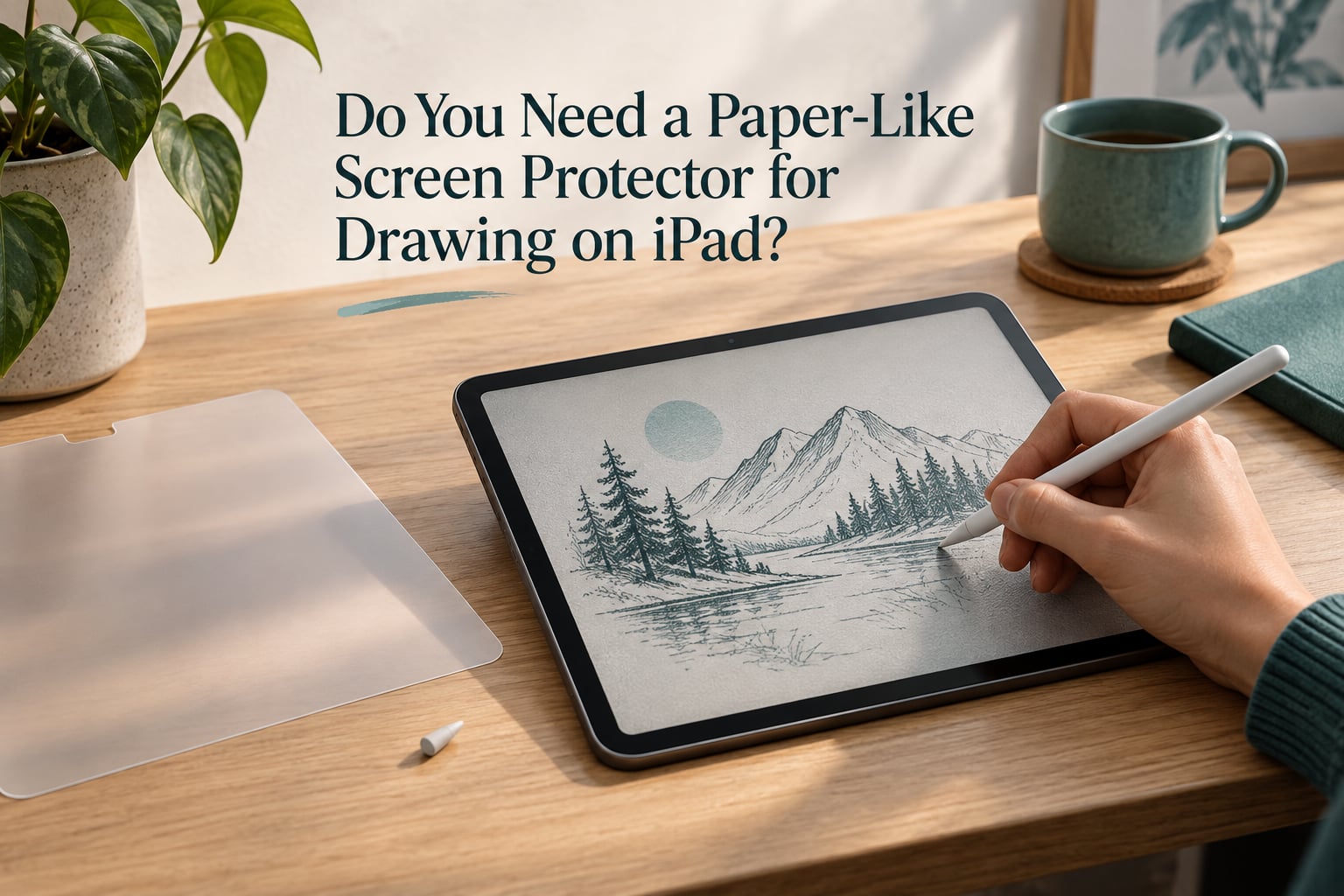
Short answer: yes if you draw, hand-letter, or handwrite on your iPad every day, and no if you mostly watch video or already own an iPad with nano-texture glass. A paper-like screen protector is a matte, textured film that adds friction between the Apple Pencil tip and the glass. That friction steadies slow strokes and makes handwriting legible, and it costs you brightness, sharpness, and faster nib wear in return.
We spent weeks putting textured films, plain matte films, and bare glass through the same linework and handwriting drills on the same iPad, then tracked how the surfaces felt after daily use. This guide is what we found, plus a short self-test you can run tonight before spending anything.
You probably need one if:
- You draw or hand-letter more than a few times a week and your lines wobble on bare glass
- You take handwritten notes in Goodnotes or a planner app and your writing looks nothing like your paper writing
- You draw on your lap, in bed, or in bright rooms where reflections ruin your view of the screen
- You paint large fills and want the pencil to glide more slowly so you can control edges
You can skip one if:
- Your iPad is mostly a screen for video, reading and browsing
- Your iPad already has nano-texture glass and you like how the native texture feels
- You draw casually and prefer maximum colour accuracy and clarity over grip
- You are not comfortable replacing Apple Pencil tips or reinstalling films
Table of Contents
- What a Paper-Like Screen Protector Actually Is
- What Changes When You Draw on Texture</
- The Trade-Offs: Brightness, Sharpness and Apple Pencil Nib Wear
- Do You Actually Need One? A 3-Question Self-Test
- Protector Types Compared
- Install Type Matters More Than the Brand
- Already Have Nano-Texture Glass? Read This First
- When Texture Wears Out, and How to Install Without Bubbles
- Frequently Asked Questions
- Do I need a paper-like screen protector for iPad?
- Is it okay to use pencil on iPad without screen protector?
- Does a drawing tablet need a screen protector?
- What screen protector is best for iPad drawing?
- Do paper-like screen protectors ruin Apple Pencil tips?
- Do I need a screen protector if I have nano-texture glass?
- Does a matte screen protector make the screen look bad?
- The Short Verdict
What a Paper-Like Screen Protector Actually Is
A paper-like, or paper feel, screen protector is a thin film with a matte micro-textured surface. Instead of the Apple Pencil sliding across a smooth sheet of glass, the tip drags slightly against a fine grain. That drag is what people mean when they say it feels like paper.
Not every matte film is a paper-like film, and that distinction matters. A plain matte protector kills glare and reflections with a flat, slightly hazy coating, but it adds almost no meaningful friction, so your handwriting problem stays exactly where it was. A paper-like film has a deliberately irregular surface, sometimes described with micro-dots or nanodots technology, built specifically to catch the pencil tip.
The other two options are different products entirely. Tempered glass is smooth, hard and glossy, and it is the best choice if you care about impact protection or watching video. Nano-texture glass is Apple’s own etched anti-glare glass, found on some iPad Pro models, which gives a gentle paper-like resistance built into the display. Neither of those is a paper-like protector, and adding one on top of nano-texture glass is a separate decision we cover further down.
So when you search for a paper like screen protector for iPad drawing, you are really searching for one thing: a film with enough surface texture that the Apple Pencil does not skate.
What Changes When You Draw on Texture</
The single biggest change is control. Bare iPad glass is very slippery, so a slow curved stroke in Procreate tends to drift at the start, the middle, or both. Add texture and the pencil has something to push against, so the stroke starts where you meant it to and keeps its width for longer.
Friction versus drag: friction is the resistance you feel when the pencil starts moving, and drag is the resistance that continues through the stroke. Both go up on a textured film, which is exactly what makes curves and lettering steady. A light grip that glides on glass often starts to feel controlled once the surface has something to catch.
Line wobble: fine linework is where the difference is most obvious. Straight edges, monoline pen strokes, spoked lettering, and long single-stroke flourishes all become more predictable because the tip no longer accelerates out of corners.
Handwriting legibility: users on r/iPadPro report the biggest surprise being that their iPad writing finally resembles their paper writing after practice. The same texture also cuts down the little flicks people get at the end of a word in Goodnotes, because the pen has friction to stop it instead of skating past.
Sound: a textured surface gives you the soft pencil-on-paper scratch instead of the faint squeak of a stylus on glass. It is a small thing, but reviewers regularly mention it as the moment the tablet started feeling like a drawing tool.
Grip on the screen itself: a textured film helps your drawing hand stop gliding across a warm screen. Writers describe hands sticking to bare glass in a way that smudges the canvas, and the matte surface keeps a palm planted so you can brace and see the lower part of the canvas. Some people like that stickiness, others find it distracting, so treat it as a side effect rather than a selling point.
The honest caveat is that the texture is not free precision. If you use a very light grip, strokes can feel slightly less responsive for the first few sessions. Our advice is to give it two weeks before deciding, because most of that adjustment is grip pressure relearning, not a defect.
The Trade-Offs: Brightness, Sharpness and Apple Pencil Nib Wear
Nothing in this category is a free upgrade. Three things get worse, and you should know all three before ordering.
Brightness and clarity. A matte layer scatters light in every direction, which is exactly how it kills reflections and exactly why it dims the image. Expect a flatter, slightly grainier look, and expect fine detail and saturated colour to take a small hit. If your work depends on subtle gradients, sharp thumbnail art, or colour matching, this is the trade-off that will bother you most.
Apple Pencil nib wear. The texture works by micro-abrasion, so it abrades the tip. Users on r/iPad and r/iPadPro describe replacing tips far more often than on bare glass, and the most committed artists treat a tip swap as routine maintenance rather than a problem. Plan on replacing tips roughly every two months if you draw daily, which works out to several sets a year, and keep spare tips on hand so a rounded nib never flattens your linework. Some brands bundle a spare ballpoint-style tip, which softens the first replacement.
Wearing out. This is the complaint almost no brand page mentions, and it comes straight from forum threads. One r/iPadPro poster described watching the paper-like material wear down over time until the surface just felt like glass again, and an r/iPad user reported scratches and scuffs across a matte film after about two months of use. The practical result is that a film which felt transformative in week one can feel scratchy and dead in month six, and that is a normal replacement point, not a defective product.
The people who tolerate these trade-offs best are the ones who draw for a living. Professional illustrators and lettering artists generally accept a dimmer screen in exchange for line control, because control is the bottleneck in their work. Casual users and colour-sensitive artists tend to bounce off the same film within a week.
Do You Actually Need One? A 3-Question Self-Test
You can answer this before you order anything, using nothing but the iPad you already own. Set a ten-minute timer and run the three drills below on bare glass.
Test 1: the slow curve. In Procreate or any drawing app, set your brush to a small monoline round, and draw a long slow S-curve in one stroke. Then draw a spiral. If the start of the stroke skids or the spiral widens and narrows on its own, you have a control problem, and texture is the fix.
Test 2: the legibility check. Write three lines of ordinary handwriting, the kind you would put in a notebook. If you cannot read it back without effort, or your letters lean and merge the way they do on bare glass for many people, friction is what you are missing. Reddit users report this test being the moment of clarity for them.
Test 3: the light and lap test. Draw or write somewhere with a window or a lamp behind you, and again with the iPad flat on your lap. If glare washes out the canvas or your palm smears what you just drew, the anti-glare half of a paper-like film solves a real problem, not a hypothetical one.
Score it like this. If all three tests bother you, buy a textured film. If only the glare test bothers you, a plain matte protector is enough and you will keep more clarity. If none of them bother you, keep bare glass or a thin clear glass film and save the change.
Now match the decision to your drawing style, because one protector does not fit every kind of work:
- Linework, monoline, lettering, calligraphy: textured film, highest priority. This is where wobble ruins the work.
- Painting and large fills: textured film helps edge control, but expect the strongest brightness loss because you are covering the whole canvas.
- Colouring and shading: works well, since slow blending benefits from drag, provided you are not judging colour accuracy.
- Note-taking and journaling: a strong yes, and the anti-fingerprint, anti-glare surface is what keeps it pleasant for hours.
- Sketching and doodling: optional. Casual work does not need control, so clarity usually wins.
- Media and gaming on the same iPad: a strong no, or use a removable protector you can peel off when you switch to video.
Protector Types Compared
Here is the same comparison, without the brand names, so you can judge the category on the variables that actually change your experience.
- Paper-like textured film: high friction and drag, best line control, strong anti-glare, noticeably dimmer and softer image, faster nib wear, removable only if it is a static cling or magnetic design.
- Plain matte film: low friction, minimal improvement to line control, good glare reduction, mild dimming, slow nib wear, usually the cheapest and thinnest option.
- Nano-texture glass (built into some iPads): moderate built-in texture, good glare control, full native screen clarity and no added brightness loss beyond the etched finish, no extra film to install, no upgrade path if you dislike it.
- Tempered glass: almost no friction, excellent clarity and colour, strongest impact protection, keeps fingerprints visible, wears the slowest nibs.
- Bare screen: the smoothest, brightest and most colour-accurate option, and the least protected. Fine if you use a case with a raised lip and draw carefully.
The pattern to notice: every step toward texture moves you away from clarity and toward nib wear. There is no option that wins all four columns, which is why this is a preference decision rather than a shopping decision.
Install Type Matters More Than the Brand
Once you have decided you want texture, the install method matters more than which brand you pick. The reason is simple: a permanent film that goes on crooked cannot be fixed, and you cannot try a second one on top.
Permanent adhesive films feel wonderful once they are down and they tend to be the most stable over time, but they are single use. Users on r/ipad describe the fear of one crooked install clearly, and the dust and bubble risk is highest for anyone installing over a warm screen. If you go this route, clean the glass thoroughly, follow the install video, and work in a cool, dim room with no dust in the air.
Static cling films have no glue at all. They sit on the glass with static charge, are fully removable, and can be reapplied many times, which makes them the safest first purchase and the easiest way to test whether you actually like the feel. The trade-off is that they can lift at the edges and are easier to misalign, so expect to re-seat them occasionally.
Magnetic or frame-mounted designs take seconds to apply and remove, and they are the only realistic option if you want to switch between textured drawing and glossy media on the same iPad. The Apple Pencil still works because the sensing is at the screen edge, not under the film, but a magnetic stack adds visible thickness and can feel less solid in the hand.
One more check before you order: make sure the protector is listed for your exact iPad size and model generation, and that it suits your Apple Pencil. Wrong-size films are the single most common purchase mistake, and a film that covers the button or misses the cutout is unusable.
Already Have Nano-Texture Glass? Read This First
If your iPad Pro has nano-texture glass, you already own a form of paper-like surface, and that changes the answer. The built-in finish gives you moderate drag and excellent glare control without stacking a second matte layer over your display.
Reasons you might still add one:
- You want noticeably more drag than the native etched finish gives you
- You work in very bright light and want stronger anti-glare performance
- You want a removable layer you can peel off for media and colour work
Reasons you probably should not:
- Stacking a matte film over nano-texture glass compounds the brightness and sharpness loss, and the image gets noticeably softer than either layer alone
- Your iPad already has built-in scratch and scuff resistance, so a film buys you less protection than it would on a gloss model
- You are paying twice for an effect you partly already have
Our rule: if you already own a nano-texture iPad and you have drawn on it for a month without control problems, you do not need a paper-like protector. If you tried it and the native texture still feels too slippery, a removable static cling film is the safest upgrade.
When Texture Wears Out, and How to Install Without Bubbles
Textured films are consumables, and knowing when one is finished is better than blaming your hands. Signs that a film has done its job: the surface feels smooth where it used to catch, the pencil-on-paper sound has gone quiet, and you can see scuffs or fine scratches under angled light.
Replace the film when any two of those show up, or when nib wear speeds up noticeably because the texture has been flattened. Budget for a replacement cycle rather than treating it as a permanent upgrade, and keep the old film until the new one is seated so you are never left without protection mid-project.
For installation, the routine matters more than the product. Work in a cool room, since warmth makes static cling lift and makes adhesive traps more dust. Clean the glass with a proper screen cleaning solution rather than water, dry it with a lint-free cloth, and only start once the screen is completely dry. Follow the film maker’s own install video, and for a static cling or magnetic film, read the alignment guide twice before you press it down.
Cleaning a matte surface needs a different approach too. A textured film hides smudges but holds oily residue in the grain, so wipe in small circles with a microfibre cloth instead of long strokes, and skip abrasive cleaners entirely. Most scratches users complain about in the first two months come from a dusty screen or a cloth with grit trapped in it, not from the pencil.
Frequently Asked Questions
Do I need a paper-like screen protector for iPad?
Only if you draw or handwrite on it regularly. Bare iPad glass is very slippery, which makes slow curves, fine linework and handwriting hard to control. A paper-like film adds friction that fixes that, at the cost of brightness, sharpness and faster Apple Pencil nib wear. If you mostly watch media or your iPad already has nano-texture glass, you can skip it.
Is it okay to use pencil on iPad without screen protector?
Yes. The Apple Pencil is designed to work directly on the display, and plenty of artists draw on a bare screen for years without damage. A protector is about feel and glare rather than function, so the deciding factors are how much you draw, how bright your room is, and whether you mind replacing pencil tips more often.
Does a drawing tablet need a screen protector?
An iPad is a pen-display tablet, so the screen is the drawing surface and protection matters more than on a screenless tablet that only senses the pen. A dedicated pen display usually ships with a hard, replaceable surface, so it needs no film. On an iPad, a protector mainly improves grip and kills reflections, since the glass itself is already tough.
What screen protector is best for iPad drawing?
A paper-like textured film if your priority is line control and handwriting legibility. A plain matte film if glare is your only problem, because it dims the screen less. Tempered glass if you want full colour accuracy and watch video on the same device, and none at all if your iPad already has nano-texture glass and the native feel works for you.
Do paper-like screen protectors ruin Apple Pencil tips?
They wear tips faster rather than ruining them. The texture works by micro-abrasion against the nib, so daily artists should expect to replace a tip roughly every two months and keep spares on hand. Many films ship with a spare ballpoint-style tip, which covers the first replacement.
Do I need a screen protector if I have nano-texture glass?
Usually not. The etched finish already gives you moderate drag and strong anti-glare without adding brightness loss or a second matte layer. Add one only if you want noticeably more friction, work in extremely bright light, or want a removable layer you can peel off for colour-critical media work.
Does a matte screen protector make the screen look bad?
It makes the screen flatter and slightly softer, not bad. A matte layer scatters light to kill reflections, which dims the image and reduces fine detail a little. If your work depends on subtle gradients, sharp small-scale art, or colour accuracy, a plain matte film or clear tempered glass suits you better than a heavy texture.
The Short Verdict
Whether you need a paper like screen protector for iPad drawing comes down to three questions: does your linework wobble on bare glass, does glare ruin your workspace, and will you actually keep spare Apple Pencil tips on hand. Answer yes to the first two and a paper-like film is worth it. Answer no to both and bare glass or a plain matte film will serve you better.
If you do buy one, start with a removable static cling or magnetic design. It costs you nothing in commitment, it survives a crooked first attempt, and it lets you take the screen back to full clarity the moment you want to watch video or check colour. This guide was updated for 2026, and the self-test takes ten minutes on the iPad you already own.