
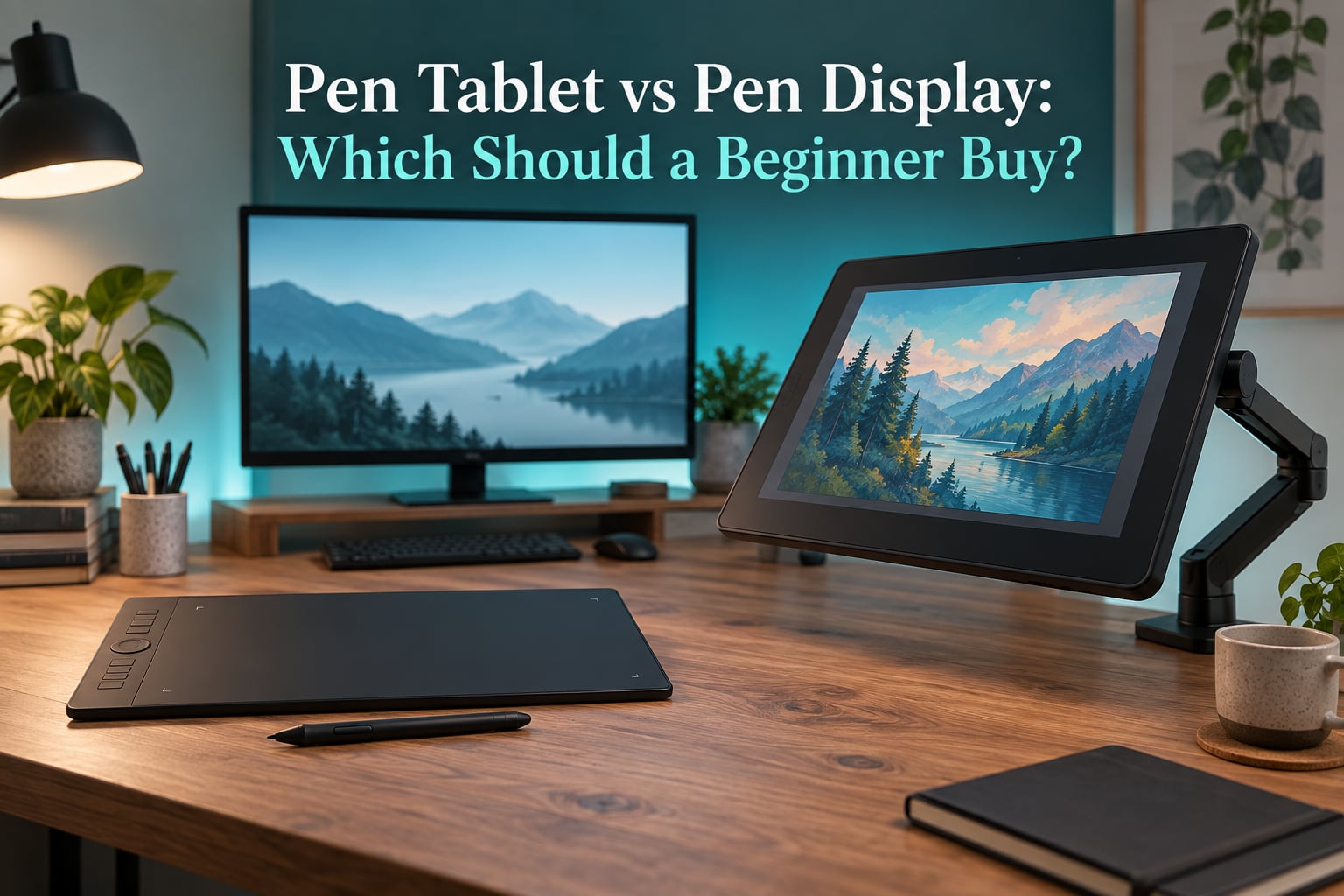
If you have been searching for a way to start drawing digitally, you have probably noticed that the two most common devices are described with almost the same words and are built completely differently. The pen tablet is a flat pad with no screen, so you look up at your computer monitor while your hand moves on a blank surface. The pen display is a screen you draw on directly, with your lines appearing under the pen tip.
That single difference changes what you spend, how long the learning curve feels, how your posture holds up, and how much desk space you need.
This guide covers the pen tablet vs pen display decision, written for someone who has never used either. We have used both device types across illustration, photo editing and 3D sculpting work, watched dozens of beginners make the same choices, and read what artists actually report in communities like r/drawingtablet and r/DigitalPainting.
You will get a direct verdict first, a side-by-side comparison, an honest look at the hard part (the hand-eye disconnect), and a checklist for picking the right one. We also cover the option nobody mentions, which is starting with a screenless pad now and upgrading to a pen display in three to six months. If you only read one section, read the Quick Answer below and the device checklist further down.
Table of Contents
- Quick Answer: Pen Tablet vs Pen Display for Beginners
- What Is a Pen Tablet?
- What Is a Pen Display?
- Pen Tablet vs Pen Display: Side-by-Side Comparison
- The Hand-Eye Coordination Problem
- Comfort, Posture and Desk Space
- What Each Option Really Costs
- Specs That Actually Matter for a Beginner
- Software and Driver Compatibility
- Portability and Desk Setup
- Which Should You Buy?
- The Staged Upgrade Path
- When Neither One Is the Right Answer
- What Beginners Actually Say
- Common Mistakes Beginners Make
- Key Terms Explained
- Frequently Asked Questions
- What is the difference between a pen tablet and a pen display tablet?
- Is a pen tablet or pen display better for beginners?
- Which is better for drawing, a screen or a screenless tablet?
- Is a screenless drawing tablet hard to use?
- What is the best screenless drawing tablet for a beginner?
- What is the best drawing tablet with screen for beginners?
- What kind of tablet is best for drawing?
- Do pen displays need a computer?
- Is a screenless drawing tablet worth it for beginners?
- Is Wacom or Huion better?
- Final Verdict for Beginners
Quick Answer: Pen Tablet vs Pen Display for Beginners
Buy a pen tablet (screenless) if you are on a tight budget, already own a decent computer monitor, work for long sessions, or want to learn line art, inking, 3D sculpting and photo retouching. Buy a pen display if you would rather skip the adjustment period entirely, your work depends on seeing your cursor and selection exactly under the pen, or you mainly do lettering, coloring, UI design and layout work. Both need a computer. Neither improves the quality of your artwork; they only change speed, comfort and cost.
Answer these five questions in order and the choice resolves itself:
- Do you already have a monitor you are happy drawing reference on? Yes, and the desk is small or the sessions run long, go screenless.
- Can you give up a third of your desk to a screen on a stand? No, and go screenless. Yes, and a pen display is open to you.
- Is your budget the main constraint right now? Then start screenless. It is the lower-commitment way in and the easiest to resell later.
- Does your work involve selecting, moving and editing small elements on canvas? That is where a pen display earns its extra cost.
- Are you still deciding whether digital art will stick? Buy the screenless pad. The upgrade path stays open, the commitment stays small.
Our default recommendation for an absolute beginner in 2026: screenless first, pen display later if the hobby sticks.
What Is a Pen Tablet?
A pen tablet is a screenless graphics tablet: a flat, pressure-sensitive pad that senses a battery-free stylus and sends that input to your computer. You draw on the pad while watching a separate monitor. The pad has an active area, the region that responds to the pen, and most models add express keys or a touch ring for shortcuts.
The stylus on nearly every modern pad uses EMR (electromagnetic resonance) technology. The pen has no battery and no charging dock, because the pad detects the electromagnetic signal the pen emits. That is why the pen needs nothing inside it and why hovering already works for brush size and cursor placement.
Physically, a screenless pad is small, light and flat, and many fit in a laptop bag. They connect with a single USB cable, draw power from that cable, and need no separate power brick. Because there is no screen, there is no colour display, no glare, no backlight and no panel to fail.
Both device types need a computer. That is the single most common surprise for first-time buyers who assumed a drawing tablet worked like a standalone tablet. Your art software, your files and your brushes all live on the computer, and the pad is an input device for it.
What Is a Pen Display?
A pen display is a monitor with a pressure-sensitive panel built in. You draw directly on the image, so the line, the brush cursor and the area you are selecting all sit exactly under the pen tip. There is no hand-eye translation step because the drawing surface and the display are the same glass.
That direct mapping is the whole appeal, and it is why pen displays feel intuitive to beginners. On a screenless pad, your hand sits about eight to ten inches below your eyes and forward of your body. On a pen display, your hand sits at the screen. New users draw accurately in minutes instead of days.
The trade is parallax. Parallax is the visual gap between the pen tip and the mark it leaves when the pen is held at an angle, caused by the glass sitting in front of the panel. On a laminated display the glass and panel are bonded together, which reduces the effect and stops the screen flexing when you press hard. Anti-glare matte coatings on many models trade sharpness for a surface that shows less reflection.
Pen displays come in sizes from about 10.5 inches up to 27 inches, and they need a stand or an articulated arm mount. They also need a video cable to your computer plus a power connection. Small models can often run from a laptop port; larger ones need a dedicated video input, which is where many first purchases go wrong.
Pen Tablet vs Pen Display: Side-by-Side Comparison
Here is the full comparison in one place, covering what a beginner actually feels during a normal session.
| Factor | Pen Tablet (screenless) | Pen Display (with screen) |
|---|---|---|
| Built-in screen | No, you draw on a blank pad and look at your monitor | Yes, you draw directly on the image |
| Typical cost tier | Entry tier, and you reuse hardware you already own | Mid to premium tier, plus a stand or arm mount |
| Learning curve | A 1 to 4 week hand-eye adjustment window | Almost none, most beginners draw usable lines in minutes |
| Hand-eye coordination | Trained, the main obstacle for new users | Natural, no training required |
| Parallax | None, the surface is the drawing surface | Present unless the panel is fully laminated |
| Comfort over long sessions | Better, the monitor stays at eye level and posture stays neutral | Worse without an arm mount, neck and shoulder ache is common |
| Desk space | Small footprint, usually one palm-sized pad | Large footprint, plus stand, arm and cables |
| Portability | High, most fit in a bag with no power supply | Low, needs a stand, power and a video source |
| Best for | Line art, inking, concept work, photo editing, 3D sculpting, long sessions | Lettering, coloring and flatting, UI design, learning new software, small precise edits |
| Needs a computer | Yes, plus a monitor | Yes, and often a desktop with a free video port |
| Colour work | Colour accuracy comes from your monitor, not the pad | Screen quality matters, though many entry panels cover only sRGB |
| Resale and commitment | Low commitment, easy to sell or pass on | Larger commitment, harder to move on |
The Hand-Eye Coordination Problem
This is the number one objection from beginners, and it deserves a straight answer rather than a reassurance. On a screenless pad, your hand is not where your eyes think it is. Early attempts at a straight line come out crooked and circles come out lumpy.
Most people assume this means they are bad at drawing. It does not. Your motor system is remapping where your hand is relative to your sightline.
Community consensus across r/drawingtablet, r/DigitalPainting and r/learnart converges on a one to four week window before screenless feels automatic. A steady minority still dislike it after months, and those people are not doing anything wrong. Know that going in: some people adapt to a coordinate offset faster than others.
Here is a three-week plan that shortens the window. Do 20 minutes a day. Consistency beats long single sessions.
Week 1: Trace drills, no pressure
Open any image and trace it as flat lines with a hard round brush at low opacity. Ignore shading entirely. The goal is not a good drawing, it is a stable hand-to-screen relationship.
Zoom in so your stroke is only a few inches long, because short strokes hide coordinate error better than long ones. When a line feels like it is fighting you, zoom in further rather than pushing harder.
Week 2: The mirror drill and the zoom drill
Flip your canvas horizontally and trace it with your non-dominant hand. The mirror removes your familiarity, so you cannot compensate with guesswork. Then set your view to 200 percent and draw small details, which trains precision at a scale where the offset is easier to correct.
This is also the week to test palm rejection by resting your drawing hand flat on the pad while you work with the other.
Week 3: Canvas-following practice
Draw a shape in the corner of the canvas, then move it to the edge, then to the centre, repeating without rotating the view. Next, rotate the canvas 90 degrees and draw a simple object. Rotation is where new users discover they compensate well.
If you are three weeks in and nothing has improved, check one thing first: your software view settings. Make sure the canvas is not mirrored vertically or horizontally, because a flipped view is the most common reason a screenless pad feels permanently wrong.
Comfort, Posture and Desk Space
Ergonomics are the quiet reason many working artists end up on screenless devices, and it is the reason several beginners wish they had started there. With a pad, your monitor stays at eye level, your shoulders stay relaxed, and your forearm rests flat on a desk.
With a pen display at desk height, you lean forward and down to reach the middle of the screen. Users on r/photoshop threads describe neck and shoulder pain building over sessions in the first weeks.
Two fixes change that. An articulated arm mount lets you position the display at eye level and tilt it back, which removes the hunch and frees desk space underneath. A display stand that raises the panel to eye height works too, if it is stable. Without either, expect the discomfort.
Surface feel matters as well. A matte, slightly textured coating on a pen display gives the pen a little grip, similar to paper. Bare glass feels slippery, and for fine line work that makes small strokes harder to control. Screenless pads are almost always matte and textured for this reason.
Desk space is the practical difference people underestimate. A small pad occupies roughly the area of a sheet of paper. A 15-inch pen display on a stand takes a third of a typical desk, and a 24-inch or 27-inch model takes most of it, before the mount and cables. Measure your clear desk depth first.
What Each Option Really Costs
Prices change constantly, so this section compares cost structure rather than quoting figures you would find stale. The cheaper device can be the cheaper overall setup, and only if you check one assumption first.
The screenless path: an entry-tier pad, plus a monitor you already own, plus a USB cable. If you already own a monitor you are happy looking at all day, this path is hard to argue with on cost. The hidden cost appears only if you need to buy a monitor too, which is why your screen matters more to the finished artwork than any pad does.
The pen display path: a mid-range or premium device, plus a stand or an arm mount, plus a video cable, and possibly a power supply. The accessories are the part people forget. A pad plus a screen you already own can end up costing less than a mid-size pen display with the mount it needs to sit at eye level.
The version most beginners get wrong: buying a pen display while using a laptop screen propped on a stand at the wrong height, which gives you the cost of the expensive option and the ergonomics of the cheaper one. If you do not own a good monitor, fixing that is a separate decision from tablet versus display, and it changes the answer.
Specs That Actually Matter for a Beginner
Marketing pages lead with the biggest number, which is almost always the wrong one. Rank the specs like this instead.
| Spec | Beginner priority | Why |
|---|---|---|
| Active area size | High | How much room your strokes have. A 10×6 inch area is already generous for a beginner, so do not pay extra for a larger surface. |
| Palm rejection | High | Lets you rest your hand on the surface without stray marks. Nothing else matters if you cannot do this comfortably. |
| Tilt sensitivity | High | Lets you shade with the side of the nib and rotate brush shapes, which stops beginners from having to change tools constantly. |
| Express keys and touch ring | Medium | Speeds up zooming and undo, but any mouse and keyboard shortcut does the same job. |
| Pressure levels | Low | 8192 versus 16384 levels is not perceptible at beginner skill level. You will not use the difference for months. |
| Screen colour gamut | Low | Meaningful for colour-critical photo and print work later, not for a first device. |
Two more terms worth knowing. Latency is the delay between the pen moving and the line appearing, and on current hardware it is rarely noticeable. Nib is the tip of the pen, and spare nibs matter more than people expect because the default one wears down.
Soft felt nibs grip matte surfaces and harder plastic nibs glide on glass. A worn nib makes a perfectly good device feel imprecise.
Software and Driver Compatibility
Before buying, open the software you plan to use and check its stylus support. Photoshop, Krita, Clip Studio Paint, Procreate, ZBrush and Blender all handle both device types without anything unusual. The differences show up in hardware support, where some features depend on the manufacturer’s driver rather than the app.
Driver setup is the most common source of first-day frustration. Wacom devices install a driver that manages the pen, and users on r/wacom report conflicts after major macOS and Windows updates, where a pen stops responding until the driver is reinstalled or updated. Huion and XP-Pen ship their own drivers and have similar reports on recent operating system versions. None of this is a reason to avoid a brand, but it is a reason to buy from somewhere with straightforward returns.
Two things to know. Screenless pads are more forgiving here: on Windows and macOS, a pad and pen usually work as a plug-and-play input device with no driver at all, and only advanced features need one. Linux support varies by brand and by app, so check before committing if that is your platform.
ChromeOS and Android have limited support for desktop-class pads, which matters if your plan is to use a Chromebook.
Portability and Desk Setup
Do pen displays need a computer? Yes, always. They are input devices, not computers, and they have no standalone software. Your drawing application, layers and files all live on the connected machine.
Screenless pads travel far better. They are light, flat, powered over USB and usually fit in a laptop sleeve, which is why they are the standard choice for students and for people who draw in more than one place. A pen display can be moved, but it needs a stand or arm mount every time, plus a video source, so the setup cost reappears at each new desk.
Handedness and desk size are worth checking early. If you draw with a hand most pads are shaped away from, look for a model with a left-hand configuration or one that is symmetric. If your desk is shallow, a small pen display or a screenless pad avoids the situation entirely. Measure before you commit.
Which Should You Buy?
Choose a pen tablet if all of these sound familiar:
- You already own a monitor you are happy looking at for hours.
- Your desk is small, or your sessions regularly run past an hour.
- Budget is the main constraint and you want the smallest sensible commitment.
- Your work is line art, inking, concept sketching, comic panels, photo retouching or 3D sculpting.
- You want one input device to handle both drawing and navigation.
- You move between locations or take your setup to class.
- You are not yet sure the hobby will stick, and an easy resale matters.
Choose a pen display if all of these sound familiar:
- You want to be drawing accurately within days, not weeks.
- Your work depends on selecting, dragging and refining small elements on canvas.
- You do lettering, coloring and flatting, UI and UX design, or layout work.
- You are learning a new program and want the interface under your hand while you learn it.
- You can commit desk space and plan to use an arm mount.
- Color-critical work matters to you now rather than eventually.
- You already have a good computer with a spare video port.
Before buying either, spend a week with free software. Krita, GIMP, Inkscape and FireAlpaca cost nothing and will teach you whether you enjoy the work at all. A few weeks in, you know your software, your hand and your tolerance for sitting still, and you can buy with real information.
The Staged Upgrade Path
The pattern that keeps showing up in forum threads, and that no competitor guide mentions, is that beginners rarely regret starting small. They regret starting expensive. Buy the screenless pad, use it for three to six months, and only move up once the hobby is a habit.
The reasoning is straightforward. Your technique improves either way, and a pen display does not make your linework better, it makes the process faster and more comfortable. A year in, the most accurate artists are usually the ones who spent more hours drawing, not the ones who owned the more expensive screen.
Meanwhile, the pad is a low-cost item to resell once you decide to upgrade, so the money is not lost, it is moved.
There is one honest exception. If your work is lettering, coloring or UI layout, and the on-screen accuracy directly affects your output speed, starting with a pen display saves you weeks. Check your software first and pick accordingly.
When Neither One Is the Right Answer
Some setups are served better by something else. A 2-in-1 laptop or tablet with a pen gives you a screen you draw on and a computer in one device. That is the answer when desk space, portability and budget all matter more than pen precision. The trade-off is colour: a laptop panel rarely matches a calibrated desktop monitor.
A tablet with a pen, such as an iPad with a stylus, works as a trial device and a travel device. It is a poor main workstation for long illustration sessions, mostly because of screen size and the grip angle when the device lies flat.
If your work is note-taking, schoolwork or very light sketching, a tablet with a pen is likely enough and you do not need to think about pen tablet vs pen display at all. Save the decision for when precision starts to matter.
What Beginners Actually Say
Community threads hold several top positions for this query, and the consensus is more useful than any vendor page. The same boards also say the device type never changes the quality of the finished artwork, only your speed and comfort while working.
- Users on r/DigitalPainting and r/drawingtablet frequently report that drawing on screen feels immediately natural to them.
- Multiple users on those same threads say the ergonomics of a screenless tablet are better for hours of work because the monitor stays at eye level.
- Community estimates of the adjustment window cluster at one to four weeks, with a strong minority still disliking screenless after months.
- In r/photoshop and r/ZBrush threads, screenless pads are described as well suited to 3D and photo work, while pen displays are called easier for learning new software because the interface is under the pen.
- A recurring pattern on r/tablets: buy the entry-level screenless pad, use it for months, then upgrade to a pen display once the hobby sticks.
- Artists who moved from a pen display to a screenless tablet often describe the switch as moving to a more professional setup.
One more thread worth reading before you buy: a comparison on r/drawingtablet pointing out that a graphics tablet paired with a good monitor wins on colour accuracy, while drawing on the screen simply feels more natural. Both halves of that sentence are true, and that is the whole decision in one line.
One warning about sources. Many of the top-ranking comparison pages on this topic are written by the brands that sell the devices, and brands argue for the type they make. Treat vendor comparisons as marketing and use them for specifications only.
Common Mistakes Beginners Make
- Buying on pressure-level numbers. 8192 versus 16384 makes no perceptible difference until you are advanced. Active area size and palm rejection do.
- Reading a brand-authored comparison as independent research. Check who sells the thing recommending it.
- Buying a large pen display for a small desk. Measure the clear desk depth and the monitor distance first.
- Skipping the monitor question. Your screen determines your colour accuracy far more than either device does.
- Not planning the mount. A pen display at desk height causes neck strain. Budget for an arm mount.
- Quitting in week one. The hand-eye disconnect feels like a skill problem and is not. Follow the three-week plan.
- Buying before testing software. A free week with Krita or GIMP prevents most of these mistakes.
- Assuming a drawing tablet works without a computer. Both types are input devices for a computer you already own.
Key Terms Explained
Stylus: the pen itself, with no battery in the case of EMR models.
EMR: electromagnetic resonance technology, which tracks the pen by reading the signal it emits and needs no charging.
Active area: the part of the pad or screen that responds to the pen. The physical device is usually larger.
Parallax: the visual gap between the pen tip and its mark, caused by glass sitting in front of the panel. Lamination reduces it.
Palm rejection: the ability to rest your hand on the surface without creating marks.
Pressure sensitivity levels: the number of distinct pressure readings the device reports, commonly 8192 or 16384.
Tilt sensitivity: detection of the pen’s angle, which drives shading and brush rotation.
Latency: the delay between pen movement and the mark appearing.
Nib: the replaceable tip of the pen, available in different hardnesses for different surfaces.
Express keys: shortcut buttons on the device, usually mapped to zoom, undo and tool switching.
Hand-eye coordination (hand-eye disconnect): the gap between where the pen is and where the mark appears, which is what screenless practice trains away.
Frequently Asked Questions
What is the difference between a pen tablet and a pen display tablet?
A pen tablet is a screenless pad that senses a stylus and sends input to your computer, so you draw on a blank surface while looking at a separate monitor. A pen display is a monitor with a pressure-sensitive panel, so you draw directly on the image with your lines appearing under the pen tip. Both use a battery-free EMR stylus, both need a computer, and neither changes the quality of your artwork.
Is a pen tablet or pen display better for beginners?
A pen display is better for beginners who want zero adjustment time and work on lettering, coloring, UI design or small precise edits. A pen tablet is better for beginners on a budget, with a small desk, long sessions, or work in line art, inking, photo editing and 3D. Most people start screenless and upgrade later, which is our default recommendation.
Which is better for drawing, a screen or a screenless tablet?
A screen is better for accuracy and for editing small elements on canvas, because the pen tip and the mark share one surface. A screenless tablet is better for long sessions, posture and desk space, because your monitor stays at eye level. Screenless users typically need one to four weeks to train hand-eye coordination before lines feel natural.
Is a screenless drawing tablet hard to use?
It is hard for roughly the first week and then it becomes automatic. Early lines look crooked because your hand is not where your eyes think it is, which feels like a skill problem but is only a coordinate remap. Three weeks of 20-minute daily practice using trace drills, a mirror drill, zoom detail work and canvas rotation is usually enough to make it feel natural.
What is the best screenless drawing tablet for a beginner?
Look for four things rather than brand loyalty: an active area around 10×6 inches, reliable palm rejection, tilt support, and express keys you can remap. Pressure levels matter far less than beginners expect, since 8192 and 16384 are not perceptible at a beginner skill level. Buy from a seller with straightforward returns, because driver friction is more common than hardware failure.
What is the best drawing tablet with screen for beginners?
For a first pen display, prioritise a fully laminated screen, an anti-glare coating, palm rejection and an active area that suits your desk. Check that it can run from a single video cable from your computer. Plan on an arm mount, since a display sitting flat on the desk causes neck strain within a few long sessions and undoes the main benefit of drawing on screen.
What kind of tablet is best for drawing?
For illustration, inking and sculpting, a pen tablet with an active area of at least 10×6 inches and good palm rejection covers most beginners. For lettering, coloring, UI design and learning new software, a pen display with a laminated screen is worth the extra cost. Neither matters much if your monitor is poor, because your screen sets your colour accuracy.
Do pen displays need a computer?
Yes. Both pen tablets and pen displays are input devices, not computers, and neither runs drawing software on its own. Your files, layers and brushes live on the connected machine. A pen display adds one more requirement over a screenless pad, which is a video connection, and larger models need a dedicated video port rather than a laptop port.
Is a screenless drawing tablet worth it for beginners?
Yes, and it is the most common recommendation in artist communities. It is the lowest-cost way to start, it fits in a bag, it reuses the monitor you already own, and it keeps your options open. The honest cost is a one to four week adjustment period. Artists who later upgrade report that the move felt like stepping into a more professional setup.
Is Wacom or Huion better?
Both are well established, and the deciding factor for a beginner is driver stability and driver support on your operating system rather than drawing quality. Wacom devices install a driver that manages the pen, and users on r/wacom report it needing a reinstall after major system updates. Huion and XP-Pen ship similar drivers with similar reports. Check recent posts for your exact setup before deciding.
Final Verdict for Beginners
For the pen tablet vs pen display question, the honest answer for a first-time buyer in 2026 is to start with a screenless pen tablet, train through the one to four week adjustment, and upgrade to a pen display later if your work turns out to need on-screen precision. Choose the pen display first only if lettering, coloring, UI design or small precise edits are your main work and you can commit desk space and a monitor mount.
Your first action costs nothing: spend a week in Krita or GIMP, draw for twenty minutes a day, and see whether the hand-eye disconnect bothers you or excites you. That week will tell you more than any comparison page, including this one.
Updated for October 2026.