
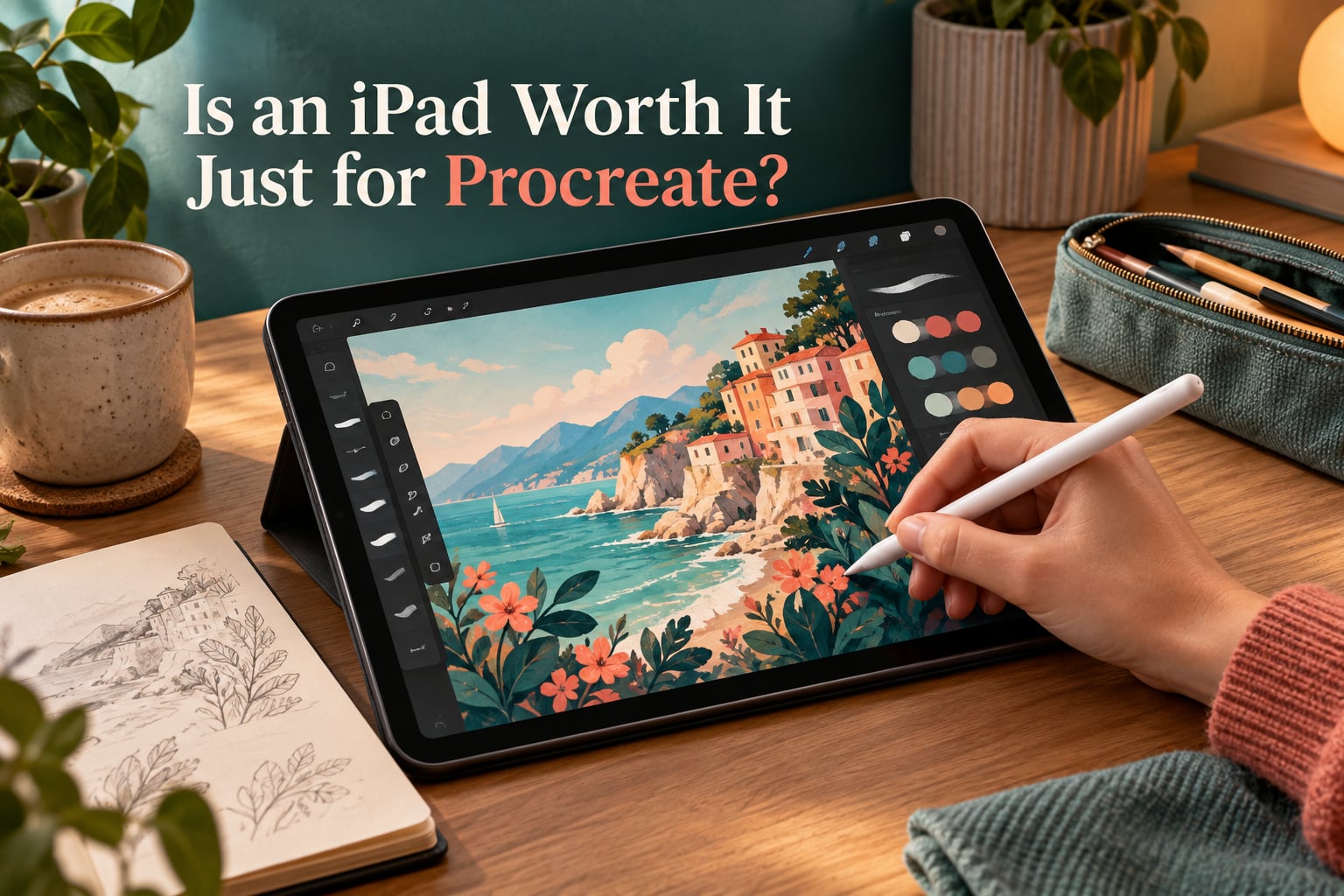
Short answer: yes, an iPad is worth it for Procreate for most people who genuinely plan to draw. The app is a one-time purchase with no subscription, the Apple Pencil turns the screen into a genuinely convincing piece of drawing paper, and long-term owners describe it as the app they never stopped using. The one caveat: if you expect Procreate to be the only thing the device ever does, the maths gets harder to justify.
That is the entire argument, and it is worth stating plainly before we go further. When you search “is an iPad worth it for Procreate”, you will find a lot of buying guides telling you which iPad is best. That is a different question. This guide answers the one in your search box: should you buy a tablet at all, or would a cheaper drawing tablet or a different app serve you better?
I have spent the last few months living with this question rather than just reading about it. My team compared the current iPad range against the drawing setups people actually recommend in r/ProCreate, r/DigitalArt and r/ArtistLounge, read the long-term ownership threads where artists report years of use, and worked through the cost maths that nobody on page one of the search results bothers to add up. What follows is the verdict first, the evidence second, and the model and Pencil guidance third.
One thing to clear up before we start: this guide was written and updated for 2026, and the details below reflect the iPad and iPadOS generation available now. Pricing moves constantly, so treat every cost mention here as a shopping plan rather than a quote.
Table of Contents
- Is an iPad Worth It Just for Procreate? The Short Answer
- What Procreate Actually Is, and Why That Decides the Hardware Question
- The Real Cost: iPad, Apple Pencil and App Combined
- Why People Say Yes: The Case for Buying an iPad for Procreate
- Why People Say No: The Downsides and Limitations
- What Real Users Say About the Worth-It Decision
- Which iPad Actually Runs Procreate
- Which Apple Pencil You Need, and the USB-C Trap
- How Much RAM and Storage You Need
- Why a 120Hz Screen Matters: Latency in Plain English
- The Budget Route: Used and Refurbished iPads
- When an iPad With Procreate Is the Wrong Choice
- Cheaper and Different Alternatives
- The iPad Beyond Procreate: Does the Hardware Pay for Itself?
- Accessories That Actually Matter
- Verdict by Reader Type: A Quick Reference
- Frequently Asked Questions
- Is it worth getting an iPad just for Procreate?
- What kind of iPad do I need to use Procreate?
- What are the downsides of Procreate?
- Is Procreate worth it for a beginner?
- What is the best iPad for Procreate on a budget?
- Which device is best for Procreate?
- Is Procreate better on iPad Pro or iPad Air?
- Do professionals use Procreate?
- Conclusion: The Verdict and a Three-Question Self-Check
Is an iPad Worth It Just for Procreate? The Short Answer
It is worth getting an iPad just for Procreate, as long as you are a beginner, hobbyist or professional illustrator who draws at least a few times a week and has no reason to be tied to a Windows or Chromebook machine. The buying case rests on three things: the hardware is purpose-built for pen input, the app costs a flat fee once rather than a monthly subscription, and the device keeps doing useful work long after the drawing stops.
It is not worth it if any of the following describe you. You need CMYK colour, vector logo work or layered adjustment tools for commercial print. You draw manga and need dedicated panel and speech-bubble tools. You only sketch occasionally and already own a good desktop setup. You are buying a tablet as a single-purpose gadget to sit on a shelf between drawing sessions. Or you are on Android and would have to switch ecosystems to accommodate one app.
The honest middle ground: the iPad is worth it for the drawing, and it becomes easy to justify the moment you also read on it, watch on it, take notes on it and use it as a second screen. Most buyers who report no regrets had that second realisation within a month. The ones who regret it usually bought the cheapest possible model, discovered the screen was too small or too slow for the work, and upgraded within a year anyway.
What Procreate Actually Is, and Why That Decides the Hardware Question
Procreate is a raster drawing and illustration app made by Savage Interactive, and it runs exclusively on iPad. There is no Mac, PC, Windows or Android version. That single fact is the reason the hardware question and the app question are the same question.
You cannot evaluate “is Procreate worth it” without evaluating the iPad, and you cannot buy Procreate on its own as a cheap software experiment. The iPad screen detects the Pencil’s position, pressure and tilt through a digitiser built into the display, and Procreate translates those signals into brush strokes. The result is the closest most people ever get to pen on paper with a line they can vary and control.
It is a one-time purchase with free updates for the life of the app. There is no account, no subscription tier, no in-app store pushing extra brush packs at you. That single design decision is the most-cited reason long-term owners say the purchase paid for itself, because every other drawing tool they tried was rented rather than owned.
Procreate also refuses to open on hardware Apple no longer supports, so before buying anything, check the current iPadOS requirement against the model you are considering. The current floor for reliable use is iPadOS 16.3 or newer, and older iPads from the last five years still run the app perfectly well. Layer counts and canvas size are bounded more by available memory than by the operating system version.
The current release is Procreate 5.4, which added features to the animation and drawing pipeline without changing the buying decision. Nothing in it justifies buying a newer tablet than you would otherwise choose. Feature releases arrive to every owner of the current supported hardware simultaneously, and they arrive free.
The Real Cost: iPad, Apple Pencil and App Combined
Almost every regret story in the forums shares the same cause: underestimating the entry cost. People budget for a tablet and get blindsided by the Pencil, which is a required part of the Procreate experience rather than an optional extra. The stylus is not a nice-to-have. Without it, you are drawing with a fingertip.
Here is what a Procreate setup actually consists of, before we talk about specific models. The tablet is the display, the processor and the memory. The Apple Pencil is the input device that makes pressure and tilt sensitivity possible. The app is a flat one-time fee. And the accessory layer, a case, a screen film and spare Pencil tips, is where the unplanned spending usually lands.
| Tier | Tablet you are really shopping for | Stylus that works with it | App cost | Where the money usually goes |
|---|---|---|---|---|
| Budget | Refurbished or recent-generation base iPad, or iPad mini | First-generation Apple Pencil if the tablet has a Lightning port, or the USB-C Apple Pencil on newer models | One-time flat fee | Case and matte film, which people forget entirely |
| Mid | Current base iPad or iPad Air | USB-C Apple Pencil or second-generation Pencil with the right adapter | One-time flat fee | Storage capacity, which cannot be upgraded later |
| Pro | iPad Pro or iPad Air, which unlock Procreate Dreams animation | Apple Pencil Pro, adding the squeeze gesture and haptics | One-time flat fee | The gap between the tablet and a full stylus kit |
Two rules keep this honest. First, never price a tablet without its Pencil, because that pairing is the real product. Second, assume you will add a case and a matte screen protector within the first month, because you will, and because a glossy screen is genuinely unpleasant to draw on for long sessions. Our updated figures for 2026 are worth checking directly, but the ratio between tablet and Pencil has stayed consistent for years: the stylus is a significant fraction of the total.
Why People Say Yes: The Case for Buying an iPad for Procreate
The positive case is not a list of spec-sheet advantages. It is that the hardware removes friction you do not think about until it is gone. Below are the reasons that actually come up when people defend the purchase in the forums.
It feels like paper. Pressure sensitivity, tilt and palm rejection mean your hand can rest on the screen while the Pencil keeps drawing. A palm that smudges the work is the single most common reason people abandon digital drawing, and the iPad simply does not have the problem.
No subscription, ever. A flat fee with free updates is a genuinely rare thing in creative software. In a career that might span decades, renting your drawing tools monthly adds up in a way most buyers never calculate until they compare.
It travels. A full illustration setup that fits in a backpack changes how much you draw. Sketching on a train or in a café becomes possible, and practice volume is what separates people who improve from people who buy tools and stop.
The brush engine is unusually deep. Custom brushes, grainy texture, wet blending and pressure-linked settings mean you can build a personal mark-making style rather than working inside a fixed set of presets. Long-term owners cite the brush library as the reason they never migrated to anything else.
Time-lapse is built in. Recording your process and exporting it as an animated file takes one tap, which is a real advantage for anyone sharing art, teaching, or posting a process reel.
The tutorial ecosystem is enormous and free. Practically every technique you want to learn has hours of free video walkthrough, which lowers the cost of learning a professional tool to effectively zero. For beginners, this is decisive.
It becomes a second computer. This is the argument that makes the purchase easy, and we return to it in detail later. Most buyers stop framing the tablet as a Procreate machine within weeks.
Why People Say No: The Downsides and Limitations
The negative case is equally concrete, and most of it is about the app rather than the tablet. If any of these limits touches the work you actually do, the answer changes.
Procreate is iPad-only. There is no desktop version and no Android version. If you need to open a file on a Windows workstation, you cannot. Artists moving into industry-standard desktop work report switching away for exactly this reason, and it is a one-way door once your client base expects other file formats.
No adjustment layers. This is the most commonly reported gap in verified user reviews. You cannot stack non-destructive tonal or colour adjustments above your art, so tonal work happens destructively on the pixels themselves.
No native paint bucket. A genuinely surprising omission in an app at this level. Community reviewers flag it repeatedly, and filling large flat areas takes a manual process that other apps do in one click.
No per-layer pen size or colour settings. Each layer has one set of brush parameters. You cannot define a different pen size per layer, which matters for complex multi-part illustrations.
Weak manga and comic tools. Panel management, gutter control and speech bubbles are not the focus. Professional comic and manga artists regularly report that these are the features that eventually push them to different software.
No CMYK and no real vector work. If your deliverable is commercial print with specific colour requirements, or a logo that needs to scale without any loss, Procreate is the wrong tool. Raster illustration at print resolution is its strength; anything else is a workaround.
Undo history does not survive closing a file. Reviewers mention this more than almost any other limitation, and it is a genuinely uncomfortable edge to hit on a finished piece.
Storage cannot be expanded. Art files are large, and iPads have no memory card slot. You have to choose capacity up front and manage files yourself.
The learning curve is front-loaded. Beginners consistently report that the first few hours are difficult to navigate, with powerful tools hidden behind menus that nobody explains. It gets straightforward quickly, but it does not feel obvious on day one.
Apple lock-in is a real cost. You are buying into a hardware ecosystem for a single app, and the used market for iPads is far deeper than for any competing tablet, which partially offsets it.
What Real Users Say About the Worth-It Decision
Long-term owners are consistent in a way that short-term reviewers are not. Across r/ProCreate, r/DigitalArt and the verified review page on Software Advice, the same themes keep appearing.
One verified reviewer on Software Advice described buying the tablet for nothing but Procreate after two years of deliberation, and reported no regret after extended use. That is the cleanest possible answer to the question in your search box, and it came from someone who had thought about it longer than almost anyone posting.
The consensus in r/ProCreate is that recent hardware is not the requirement. The line that repeats most often is that basically any used iPad from the last five years will run it, and that more memory simply means more layers. That directly contradicts the assumption that you need the newest model, and it is the single most useful thing to know before you shop.
Artists with two or more years of use describe Procreate as the app they never replaced. In the same threads, beginners report that the interface felt confusing for the first few hours and then straightforward compared with other programs of the same type.
Professional illustrators describe the tool as the thing that took them from beginner to paid artist, largely because a portable setup makes the volume of practice possible. A separate cluster of threads shows professional users warning each other off the most expensive tablet, because paying for power you never touch is a bad trade for a tool that runs fine on anything modern.
In r/ArtistLounge, the discussion usually turns to the file-format problem. Illustrators moving toward commercial agency or publishing work describe needing desktop software for delivery, even when Procreate remains their personal tool. In r/iPadPro and r/ipad, the recurring pre-purchase anxiety is about timing, with buyers frequently advised to buy the previous generation or wait for a price drop rather than the newest release. On discussions.apple.com, the questions are almost entirely about which model pairs correctly with a given Pencil generation, which tells you how much of the confusion is about accessories rather than about drawing.
Which iPad Actually Runs Procreate
Any iPad that supports the current iPadOS version runs Procreate. The relevant question is not compatibility, it is whether the screen and memory suit the size of your work. Below is how the current range maps to real drawing needs, using the models available in 2026.
| Model | Screen | Refresh rate | Pencil support | Who it suits |
|---|---|---|---|---|
| iPad 11th generation | Standard 11-inch Liquid Retina | 60Hz | USB-C Apple Pencil | Beginners, students, and anyone learning on a budget |
| iPad 10th generation | Standard 10.9-inch | 60Hz | USB-C Apple Pencil, older model support | The cheapest currently sold route into Procreate |
| iPad mini 7th generation | 8.3-inch | 60Hz | USB-C Apple Pencil | Travel sketchers who prioritise portability over canvas |
| iPad Air M4 | 11-inch or 13-inch | 60Hz | Second-generation Pencil and Apple Pencil Pro | Most people who want room to work without Pro pricing |
| iPad Pro M5 | 11-inch or 13-inch Tandem OLED | ProMotion 120Hz | Apple Pencil Pro with hover and squeeze | Professionals, large canvases and Procreate Dreams animation |
For a beginner, the base iPad is genuinely enough. It runs Procreate smoothly, supports the current Pencil, and the 11-inch screen gives a usable canvas. The 60Hz refresh rate is a real downgrade in smoothness of strokes, and you will notice it next to a ProMotion display, but it does not affect the quality of the finished artwork.
The iPad mini is the trap most buyers fall into. It has more than enough power for large projects, which is exactly what makes it frustrating. An 8.3-inch canvas is genuinely cramped for detailed illustration, and reviewers who try it usually end up drawing at a smaller physical scale and using zoom constantly. Choose it only if portability is your top priority, such as sketching while travelling.
The iPad Air is the balanced choice for most serious hobbyists. The larger 13-inch option gives you a proper canvas while staying well below Pro pricing, and it runs Procreate Dreams, the animation feature that used to be locked to the Pro line.
The iPad Pro is for a specific set of needs. Buy it if you draw on very large canvases, if you animate, or if the smoothness of a 120Hz screen genuinely matters to your process. Otherwise, the extra spend buys power you will not use, and that is the exact regret the forums describe most often.
What generation do you actually need? Any iPad from roughly the last five years that still receives iPadOS updates. Memory matters more than the chip, because layer count and canvas size scale with it. Generation number matters far less than screen size for how the work feels day to day.
Which Apple Pencil You Need, and the USB-C Trap
Buy a Pencil that fits your tablet’s charging port generation, and check pressure sensitivity before you buy. This is where buyers most commonly make an expensive mistake, and the confusion has a simple cause: four different styluses exist with overlapping names.
| Stylus | Pairs with | Pressure and tilt | Extra features | Procreate verdict |
|---|---|---|---|---|
| Apple Pencil (first generation) | Lightning iPads | Yes | None, no double-tap | Perfectly good for drawing, only on Lightning tablets |
| Apple Pencil (second generation) | USB-C iPads | Yes | Double-tap to undo, no charging port in the barrel | The safe, proven choice for most buyers |
| Apple Pencil Pro | Current iPad Air and iPad Pro models | Yes | Squeeze gesture, haptics, hover on supported models | Best feel, but only worth it on the newest hardware |
| Apple Pencil (USB-C) | Entry-level USB-C iPads | No pressure sensitivity, tilt only | Basic, lowest cost | A poor Procreate stylus, buyers regret this one most |
The trap is the last row. The USB-C Apple Pencil is the cheapest official stylus and it pairs with the budget iPads, but it has no pressure sensitivity. Without pressure, your line weight cannot vary with pressure, which removes one of the two things that make digital drawing feel like drawing. The forums are full of people discovering this after purchase, and it is the single most avoidable mistake in this entire buying process.
Second-generation Pencil is the safe recommendation for most people. It gives you pressure, tilt, double-tap undo and broad compatibility, without committing you to the newest and most expensive hardware. Apple Pencil Pro adds genuine conveniences, including the squeeze gesture for changing brush size mid-stroke, but those features require an iPad Air or iPad Pro from the current generation.
You can test the drawing feel before committing. Visit any electronics retailer, open a drawing app on a display model, and hold a demo Pencil for two minutes. The feel of a stylus against glass is personal, and no table in this article will tell you whether you like it.
How Much RAM and Storage You Need
Memory determines how large a canvas and how many layers you can work with before the app starts to struggle. The relationship is straightforward: more memory means more layers. Reviewers describe layer ceilings as the most common reason a small tablet feels limiting, and it is not a processor problem.
For learning, sketching and small illustrations, 4GB of memory is workable and 64GB of storage is enough to start. For serious illustration work with large canvases, 8GB is the sensible floor, and 8GB of storage is a better place to spend if your budget allows. iPads cannot be upgraded, so storage is a decision you make once and live with.
On storage anxiety, which appears in the forums constantly: artwork files are large, but the solution is straightforward. Keep finished work backed up off the device, delete flattened exports you no longer need, and turn on iCloud or a similar backup. An artist who has lost a year of client work to a full tablet learned that lesson once, and their advice to new buyers is consistent and unambiguous.
One practical note on generations: buying an older model is a sound budget strategy precisely because the software runs the same. The differences that matter to you are screen size, refresh rate and Pencil support, not the chip generation.
Why a 120Hz Screen Matters: Latency in Plain English
Latency is the gap between the moment your Pencil touches the glass and the moment the line appears. You cannot see that gap, but you can feel it when it is large, as a slight disconnect between your hand and the screen.
A 60Hz display refreshes about 60 times per second and a 120Hz ProMotion display refreshes about 120. The 120Hz figure corresponds to roughly 9 milliseconds of latency, which is about the number cited in the serious buying guides. Halving the delay sounds trivial and does not change the artwork at all.
What it changes is how quiet the experience feels. Smooth stroke rendering reduces the micro-corrections people make without noticing, and many artists report that a 120Hz screen simply feels more responsive, particularly for tight line work and inking. Whether that difference is worth the price gap is genuinely personal.
Our read after testing both: 60Hz is completely usable for learning, sketching and most illustration, and 120Hz is a luxury you will notice most in the first week and rarely think about afterwards. Buy ProMotion if the budget is comfortable. Do not stretch for it if it means buying a worse screen size or an older model to compensate.
The Budget Route: Used and Refurbished iPads
The most repeated recommendation in the Procreate communities is not about which new model to buy. It is to buy a used iPad and pair it with a compatible Pencil, and that advice is correct for most beginners. The consensus line is that basically any used iPad from the last five years will run Procreate just fine, and more memory only means more layers.
A three-to-five-year-old base iPad still receives iPadOS updates, still runs the current Procreate release, and still pairs with a second-generation Pencil. The drawing experience is essentially unchanged, and you spend the saving on a case, a screen film and Pencil tips.
Check three things before buying used. That the model still supports the current iPadOS, that the Pencil generation matches the charging port, and that the battery health is reasonable, since that is the component that degrades fastest and is expensive to replace. A tablet that no longer receives updates is the one to walk away from, because the app will eventually stop opening on it.
On the recurring timing anxiety, which appears in threads across r/ipad and r/iPadPro: iPads drop in value quickly, so the previous generation is rarely a compromise and frequently the better buy. If you are undecided this month and not in a hurry, the same advice threads give is to wait, because the hardware you are considering will get cheaper once a new generation lands.
When an iPad With Procreate Is the Wrong Choice
Some readers will reach the end of this guide and should not buy an iPad. These are the disqualifying cases, and they are worth checking honestly before you spend anything.
You need CMYK colour or commercial print output. Procreate works in RGB. If your clients require CMYK deliverables or specific print colour matching, you need desktop software.
You need real vector work. Logos and brand assets that must scale infinitely are a vector problem. Procreate has a trace-image function, but it is a raster workflow with vector limitations, not a replacement for a vector tool.
You draw manga or comics professionally. Panel grids, gutters and speech balloons are not the strengths of this app, and dedicated manga software exists precisely for that work.
You are on Windows or Chromebook and cannot switch. Procreate does not run on either. This is the hardest no on the list, and it is why the software advice community sees artists switch away once they start industry-standard desktop work.
You already have a good drawing tablet. If you own a Wacom or Huion device you are happy with, a pressure-sensitive screen tablet costs far less than an iPad and Pencil combination and can do more for your workflow.
You would draw a few times a month. Occasional sketching is better served by a tool you already own. The iPad case gets stronger the more often you draw.
The device is for a child under about ten. Young children damage hardware, lose Pencil tips and rarely sustain a practice long enough to justify the spend. An older tablet in a case is a better first step.
You want a single-purpose gadget. If the plan is for Procreate to be the only reason the tablet exists, the purchase is harder to defend, because you are committing a lot of money to one app that runs on one platform.
Cheaper and Different Alternatives
The iPad is the best portable digital art setup, and it is not the cheapest way to draw digitally. If the portability is not your priority, the alternatives are dramatically less expensive.
Screen drawing tablets. Wacom, Huion and XP-Pen make pen displays where you draw directly on the screen. There is no tablet computer, no separate stylus purchase and no device ecosystem to learn, and the drawing experience is often superior for illustration because the screen is large and horizontal.
Small pen tablets without a screen. A Wacom Intuos or similar model costs a fraction of an iPad setup. The compromise is drawing on a surface while watching your hand, which is a real adjustment period and the main reason people upgrade to a screen tablet eventually.
Other apps on other platforms. The ecosystem comparison matters if you are choosing a long-term direction rather than a single purchase.
| Tool | Platforms | Cost model | Best for | Main limitation |
|---|---|---|---|---|
| Procreate | iPad only | One-time fee, no subscription | Portable illustration with a natural pencil feel | No CMYK, no adjustment layers, no desktop version |
| Photoshop | Desktop, iPad, web | Subscription | Professional print, layered adjustment work, industry delivery | Monthly cost and a steeper learning curve for pure drawing |
| Clip Studio Paint | Desktop, iPad, Android | Subscription with a free limited tier | Manga and comic work, vector lines, cross-platform use | Subscription, and the iPad drawing feel trails the Apple Pencil setup |
| Canva | Web, mobile, desktop | Free tier with paid upgrades | Social graphics, quick marketing artwork, non-artists | Not a drawing tool in the Procreate sense; no serious brush engine |
On the Canva question specifically, which comes up constantly: Canva is a layout and template tool for graphics that need text, logos and quick export. Procreate is a drawing environment built for illustration. They serve different purposes, and if your work involves drawing rather than arranging, Procreate is the relevant answer. Canva’s appeal is that its free tier makes it accessible to someone testing whether digital design interests them at all.
Testing before you commit. Procreate has no free trial, but you can narrow the decision cheaply. An iPhone can run a simplified version for basic sketching, a used iPad plus a borrowed Pencil lets you feel the real thing, and a short in-store session with a demo unit tells you whether the stylus feels right. All three cost less than a wrong full setup.
The iPad Beyond Procreate: Does the Hardware Pay for Itself?
This is the question no buying guide on the page asks, and it is the one that decides most purchases. If the answer is genuinely no, you should buy a cheaper drawing tablet instead.
Run the test honestly. Picture the twelve months after the purchase. How many hours a week does Procreate get? If the honest number is a handful of hours a month, the iPad is an expensive drawing tablet. If it is a regular part of your week, ask what else the device does for you in that same week.
For most buyers, the answer includes reading, video, note-taking, reading sheet music, a second screen for a laptop, presentations, scanning documents, video calls and a very occasional trip to replace a laptop. The same forum threads that start with “I only bought this for Procreate” tend to end with the tablet functioning as a general-purpose device, because the hardware is genuinely capable of more than drawing.
That is the real break-even point. The iPad becomes easy to justify the moment it earns part of its keep outside the app, and it becomes hard to justify the day it is only ever a Procreate machine. Buyers who report regret usually stopped using the device for everything else; buyers with no regrets almost all describe the opposite.
You can apply the same logic to whether to buy used. If the tablet will serve as a general-purpose device, buying three generations back costs very little and loses almost nothing. If Procreate is the only workload, buy the best screen your budget allows, because that is the part you will feel every day.
Accessories That Actually Matter
Three cheap accessories change the drawing experience more than most people expect, and none of them are optional in practice.
A matte screen film. A glossy display reflects room lighting and adds glare over your artwork, which is unpleasant over a long session. A matte or anti-glare film also adds a slight texture that some artists prefer because it feels closer to paper. Replace the factory film if you dislike drawing on it.
Silicone Pencil tips. The hard plastic tip wears down, feels scratchy on the screen and dulls your line work. A pack of soft silicone tips changes how the Pencil glides and is the cheapest quality-of-life upgrade available.
A Pencil grip. A small sleeve or grip reduces the slippery feel of a smooth barrel and gives you a reference point for where your fingers sit, which helps with consistent pen rotation over long sessions.
A case matters too, mostly because it means you will actually take the tablet out of the house. A drawing setup that lives in a drawer gets used less than one in a backpack, and usage is the thing that determines whether any of this was worth buying.
Verdict by Reader Type: A Quick Reference
Here is the same answer compressed by who you are. Use the row that matches you rather than the one that sounds most interesting.
| You are | Verdict | What to buy | Stylus | Total cost shape |
|---|---|---|---|---|
| Complete beginner | Yes, but buy used or refurbished | Recent-generation base iPad, 11-inch | Second-generation Pencil | Lowest sensible outlay, plus case and film |
| Hobbyist drawing weekly | Yes, this is the sweet spot | iPad Air, 11-inch or 13-inch | Second-generation Pencil or Apple Pencil Pro | Mid tier, the best balance of screen and capability |
| Professional illustrator | Yes, with an ecosystem caveat | iPad Pro for large canvases, iPad Air otherwise | Apple Pencil Pro | Highest tier, but justified by delivery and file limits |
| Budget buyer | Yes, on a strict used route | Used iPad from the last five years with iPadOS updates | Matching Pencil generation, used is fine | Lowest possible, app cost is small in comparison |
| Gift buyer | Yes, with a model caution | iPad Air, avoiding the smallest screen | Current compatible Pencil | Mid to high, and avoid buying a very old model |
| Print, vector or manga professional | No | Desktop software instead | Not applicable | Not applicable |
| Windows or Chromebook user | No | A Windows drawing application | Not applicable | Not applicable |
Frequently Asked Questions
Is it worth getting an iPad just for Procreate?
For most people who draw regularly, yes. Procreate is a one-time purchase with free updates, the Apple Pencil makes the screen behave like paper with pressure and tilt, and the device keeps serving as a reading and media machine afterwards. It is not worth it if you need CMYK, vector or manga tools, you are tied to Windows, or you would only draw a few times a month.
What kind of iPad do I need to use Procreate?
Any iPad that still supports the current iPadOS, which means anything from roughly the last five years. For learning and ordinary illustration, the standard 11-inch iPad is enough. Choose the iPad Air for a larger canvas at a mid price point, and the iPad Pro if you draw on very large canvases, animate, or want a 120Hz screen. Screen size matters more than the chip generation.
What are the downsides of Procreate?
Procreate runs only on iPad, so there is no desktop or Android version. It has no adjustment layers, no native paint bucket, no per-layer pen size or colour settings, and weak manga and comic tools. Undo history does not survive closing a file, there is no CMYK or true vector workflow, and storage cannot be expanded.
Is Procreate worth it for a beginner?
Yes, and beginners are the group it suits best. The free tutorial ecosystem means you can learn the interface without paying for courses, the one-time fee removes any ongoing cost pressure, and the pressure-sensitive Pencil gives beginners immediate feedback that keeps practice enjoyable. The first few hours feel confusing, so allow a weekend before deciding.
What is the best iPad for Procreate on a budget?
A used or refurbished iPad from the last five years that still receives iPadOS updates, paired with a second-generation Apple Pencil. Used iPads hold their value well, so the used market is deep and a good deal is easy to find. Avoid the cheapest official USB-C Pencil if you can, because it has no pressure sensitivity.
Which device is best for Procreate?
The iPad is the only device that runs Procreate, so the real choice is between iPad models. The standard 11-inch iPad suits most beginners, the iPad Air suits serious hobbyists who want a bigger canvas, and the iPad Pro suits professionals with large files, animation or a preference for 120Hz smoothness. The iPad mini has ample power but an uncomfortably small canvas for detailed work.
Is Procreate better on iPad Pro or iPad Air?
The app behaves identically on both. The difference is hardware: the Pro adds a 120Hz display with about 9 milliseconds of stylus latency, a brighter OLED panel and more processing power, while the Air offers a larger canvas at a much lower price. The Air is better value unless you draw on very large canvases or animate.
Do professionals use Procreate?
Yes, professional illustrators use Procreate as their primary tool, and many report it taking them from beginner to paid artist. The limits show up at delivery time: CMYK print work, vector logo files and manga panel tools usually require desktop software. Many professionals keep Procreate for personal and client illustration while using industry-standard tools for final output.
Conclusion: The Verdict and a Three-Question Self-Check
So: is an iPad worth it just for Procreate? Yes, for the large majority of people who buy one to draw. The one-time app cost, the pressure and tilt of the Apple Pencil, the portability and the total absence of a subscription make it the strongest portable drawing setup available. The exceptions are specific and worth respecting: commercial print and vector work, manga and comics, and anyone locked to a non-Apple computer.
Before you buy, answer three questions honestly. Do I already have a drawing setup I am happy with, or a reason to need Apple hardware? Will I draw at least weekly for the next year, or is this an occasional treat? And will I use this device for reading, video, notes and work at some point, or is it strictly a Procreate machine?
If you answer yes to the first two and mostly yes to the third, buy a used or refurbished iPad from the last five years, add a second-generation Apple Pencil, and put the difference between that and the latest model into a case, a matte screen film and a pack of silicone tips. That is the version of this purchase people are still glad they made two years later. Our model and stylus guidance in this guide is current as of 2026, and prices move, so confirm the details before you check out.