
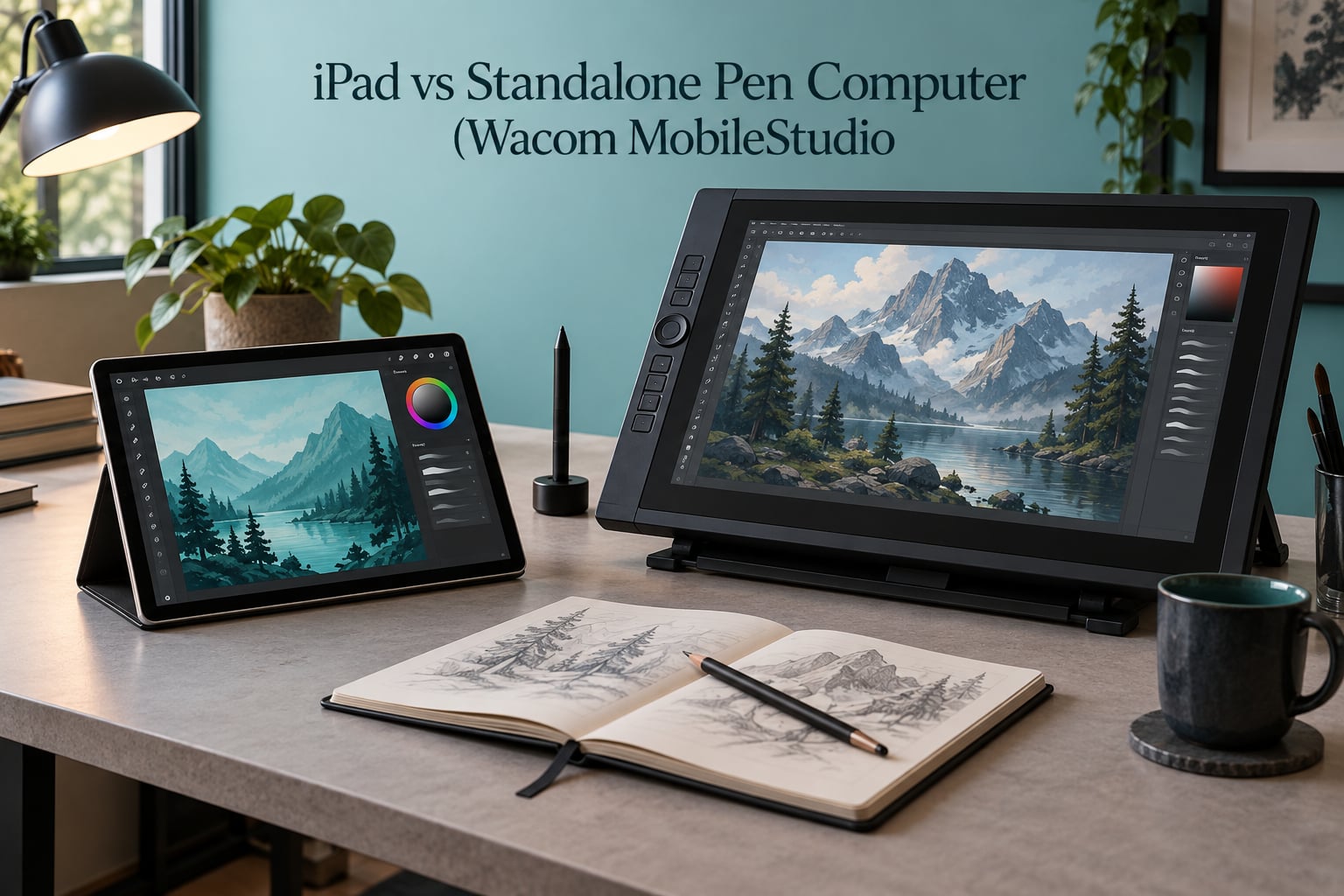
If you are choosing between an iPad and a standalone pen computer like the Wacom MobileStudio Pro, the honest answer is that these are two different tools, not two versions of the same tool. The iPad wins on portability, battery life and the low friction of app-based drawing. The Wacom pen computer wins on matte drawing surface, hardware shortcut keys and access to full desktop software. This guide breaks down both in detail so you can pick the one that matches the work you actually do.
Table of Contents
- iPad vs Wacom MobileStudio Pro: Which Is Better for Artists?
- What Is a Pen Display, a Pen Computer and a Standalone Drawing Tablet?
- Head-to-Head Specs: iPad Pro Against the MobileStudio Pro 16
- Drawing Feel: Wacom Pro Pen 2 Against Apple Pencil Pro
- Screen and Surface: Matte Paper Feel Against Glossy Glass
- Shortcut Controls: ExpressKeys, Rocker Ring and Pencil Pro Gestures
- Software and App Compatibility: What Each Device Can and Cannot Run
- Colour, CMYK and Print Preparation
- Performance, Battery and the Portability Paradox
- Total Cost of Ownership Over Five Years
- The Wacom Lineup in 2026: MobileStudio Pro 16 Against MovinkPad Pro 14
- Which iPad Model Is Best for Artists in 2026?
- Which Device Fits Your Work?
- Alternatives to the Pen Computer Route
- What Owners Report in Communities
- Frequently Asked Questions
- Is Wacom better than iPad for drawing?
- Can an iPad replace a Wacom tablet?
- Does Wacom have a standalone drawing tablet?
- What is the best standalone drawing tablet?
- Is the iPad Pro better than the iPad Air for artists?
- Is it better to get a drawing tablet or an iPad?
- How do I make an iPad feel like a Wacom tablet?
- Why is palm rejection not working on my iPad?
- What is the best drawing program for iPad?
- What is the best alternative to Wacom?
- Conclusion
iPad vs Wacom MobileStudio Pro: Which Is Better for Artists?
The Wacom MobileStudio Pro is better for artists who need full desktop software, a matte drawing surface and hardware shortcut keys. The iPad Pro is better for artists who sketch on the move, want instant-on battery life and prefer a touch app workflow over a desktop one. Neither is universally better. The right choice depends on whether your deliverable is a finished client file produced in Photoshop and Illustrator, or an idea captured in Procreate before it goes to a studio workstation.
That single sentence is the whole comparison, and everything below it is the detail behind it. Over the years our team has watched artists move in both directions with these devices, and the pattern is consistent enough to be worth stating plainly: the iPad rarely loses anyone who draws digitally, and the Wacom rarely disappoints anyone who needs it. The expensive mistake is buying the premium option for a strength you never touch.
What Is a Pen Display, a Pen Computer and a Standalone Drawing Tablet?
The vocabulary around these devices causes more confusion than the buying decision itself, so it is worth pinning down before comparing anything.
Pen display is a screen with a pen-sensitive surface and no computer inside. A Wacom Cintiq is the classic example. It is superb to draw on, but it needs a desktop or laptop plugged into it, usually over a single USB-C cable that also carries the image and pen data. Your drawing software is whatever runs on that other machine.
Pen computer is a pen display with a full computer built inside. The Wacom MobileStudio Pro is the best-known example, and it runs Windows natively, so it boots on its own and you can draw on a sofa, on a train or in a cafe without any other hardware. Wacom also uses the phrase all-in-one for this category.
Standalone drawing tablet is the broader term for any drawing device that does not need an external computer, which includes the iPad. In practice this covers two very different families: Windows pen computers such as the MobileStudio Pro, and consumer tablets such as the iPad and certain Android models that run drawing apps instead of a full desktop operating system.
So when someone asks whether Wacom makes a standalone drawing tablet, the answer is yes. The MobileStudio Pro is exactly that, and it is a different product from the Cintiq, which is not standalone at all.
A note on pen technology. The Wacom Pro Pen 2 uses EMR, or electromagnetic resonance, where the pen draws its power from the tablet surface and needs no battery. The Apple Pencil uses AES technology, which runs on a small rechargeable cell inside the pen. This single difference explains most of the durability complaints artists have about the Apple Pencil.
Head-to-Head Specs: iPad Pro Against the MobileStudio Pro 16
The table below is the comparison most searchers want, laid out so each row is one decision rather than a bundle of them.
| Specification | iPad Pro with Apple Pencil Pro | Wacom MobileStudio Pro 16 |
|---|---|---|
| Screen size | 11 inch or 13 inch | 15.6 inch |
| Screen finish | Glossy glass, nano-texture option on the 13 inch model | Matte anti-glare surface as standard |
| Resolution class | Retina, roughly 2x pixel density | 2560×1440, or 3840×2160 UHD on the higher configuration |
| Pen pressure levels | 8192 | 8192 |
| Tilt recognition | Yes | Yes |
| Barrel rotation | No | Yes, on the Pro Pen 2 |
| Pen power | Rechargeable, magnetic docking | Battery-free EMR pen |
| Shortcut controls | Squeeze, haptics, double-tap, on-screen radial menu | ExpressKeys plus a four-way Rocker Ring and on-screen radial menu |
| Operating system | iPadOS, touch-first | Windows, full desktop |
| Stylus included in the box | No, sold separately | Yes |
| Ports | Single USB-C, plus Smart Connector for accessories | Multiple USB-C, Thunderbolt, microSD |
| Battery | Full day of intermittent sketching | Several hours of active drawing, fanless and silent |
| Modelled as a portable device | Yes, genuinely pocketable with a case | No, heavy and bulky for its size |
| Colour pipeline | RGB display workflow | RGB display, full CMYK print preparation |
Two rows carry more weight than the rest. The pen power row decides how often you think about your stylus at all, and the operating system row decides what you can finish on the device. The colour row only matters to a subset of buyers, but for that subset it is the whole decision.
Drawing Feel: Wacom Pro Pen 2 Against Apple Pencil Pro
Both pens register 8192 levels of pressure, so on paper the pressure curves are equivalent and most artists cannot tell them apart from a line test. The differences show up in the areas that spec sheets do not list.
Friction and glide. The Pro Pen 2 glides across a matte surface with a faint drag that mimics pencil on paper. The Apple Pencil on bare glass feels almost frictionless, closer to a ballpoint on a smooth sheet, and the tip slides further than most artists expect before a stroke registers.
Tilt and barrel rotation. Both pens detect tilt. Only the Pro Pen 2 registers barrel rotation, so you can turn the pen in your fingers and the brush narrows and widens, which is a genuinely useful trick for organic linework. Apple has not added barrel rotation to the Pencil.
Charging and durability. The Wacom pen needs no charging at all, so it cannot run out mid-session. The Apple Pencil needs a charge, and although it lasts far longer than early generations, owners do report cracked and bent pencils after a couple of years of heavy daily use. Wacom pens are widely reported to last a decade or more.
Eraser. The Pro Pen 2 has a dedicated eraser end that you flip with your thumb, which is faster than switching tools. The Apple Pencil has no eraser end and relies on a gesture or a software eraser brush.
Hotspots and palm rejection. Wacom supports a hotspot feature that lets you program a pen button to cycle tools, and palm rejection on an EMR surface is essentially automatic because the pen is only detected when it is near the digitizer. On the iPad, palm rejection depends on the app and on the palm contact area setting, and it fails more often than artists expect.
Screen and Surface: Matte Paper Feel Against Glossy Glass
Ask any artist which single thing they would change first, and glossy glass comes up more than any other answer. In owner communities the recurring theme is that an iPad out of the box feels slippery and unnaturally smooth compared to a matte pen display, and that a paper-like matte screen protector is considered close to mandatory rather than optional.
Here is where the hardware genuinely diverges. The MobileStudio Pro 16 ships with a matte anti-glare surface as standard on every configuration. The iPad Pro ships with glossy glass, though the larger model offers a nano-texture option that sits between gloss and the full matte coating of a pen display.
Glossy glass has one real advantage: colours look punchier and a pure white canvas looks clean without a filter. Matte surfaces diffuse reflections and cost you a little contrast and clarity in exchange for a drawing surface that behaves like paper.
How to Make an iPad Feel Like a Wacom Tablet
This sequence takes about an hour and changes more about the drawing experience than any software setting.
Step 1. Fit a paper-like matte screen protector. Skip the cheap tempered glass options, which make the surface worse rather than better, and choose a protector rated for drawing rather than for scratch protection.
Step 2. Turn on palm rejection in every app you draw in, then set the palm rejection or touch rejection area rather than leaving it at the default. This is the setting most people never change, and it is the one that fixes accidental strokes.
Step 3. Disable gestures that trigger while your drawing hand rests on the screen. Two-finger undo, three-finger paste and the pinch shortcuts are the usual culprits, and each one can interrupt a line mid-stroke.
Step 4. Rebuild your brush set in the app you actually draw in. Import a pencil texture, drop the opacity on a primary brush and add a separate eraser brush, since the Apple Pencil has no eraser end to flip to.
Step 5. Set the double-tap gesture to undo if your drawing hand does not already rest near the screen edge, and move it to a different action if it does. Undo and redo save more sessions than any other shortcut.
Step 6. Use a small support stand so the screen sits at a slight tilt rather than flat. Drawing on a flat tablet forces a bent wrist, and the wrist is what gets tired first.
Why Is Palm Rejection Not Working on My iPad?
Almost always one of four causes, in order of likelihood.
Step 1. Check that palm rejection is switched on for that specific app rather than only in the system settings. Each drawing app has its own control.
Step 2. Adjust the palm contact area. The default is tuned for fingertip contact, and a resting palm is wider than a fingertip, so the setting needs to recognise the whole heel of your hand.
Step 3. Remove any case or glove that sits between your hand and the screen. A thick case edge confuses the capacitive layer and blocks pen detection in that region.
Step 4. Turn off the drawing hand if the app supports left or right hand preference, since the default assumption can cause the wrong region of the screen to be ignored.
One honest limitation: even correctly configured, iPad palm rejection is less absolute than EMR palm rejection on a Wacom pen display. Artists who brace their hand heavily report the occasional stray mark, and that is a legitimate reason to prefer the pen computer.
Shortcut Controls: ExpressKeys, Rocker Ring and Pencil Pro Gestures
The iPad has no physical shortcut keys, and this used to be the strongest argument for the Wacom. Apple has closed much of that gap with the Apple Pencil Pro without fully closing it.
The Apple Pencil Pro adds a squeeze sensor near the tip that triggers a radial menu of tool actions, plus haptic feedback so you know a press registered without looking down. A double-tap on the barrel handles undo. These are genuinely useful, and they are gestures you have to remember and perform correctly rather than keys you can feel and hit without looking.
Wacom puts physical controls under and beside the screen. ExpressKeys are assignable to anything, including brush changes, zoom and colour picker, and the four-way Rocker Ring sits under the screen where a thumb can rest and scroll through a tool set without lifting the pen. The on-screen radial menu exists on both, so that is no longer a differentiator.
The practical summary: if your workflow is mostly one tool at a time, the Pencil Pro gestures are enough. If you constantly switch brush, colour, size and view while holding a stylus at a low angle, physical keys you can find by touch are still the better tool, and only the Wacom has them.
Software and App Compatibility: What Each Device Can and Cannot Run
This is the most important section in the comparison, and it is where the two platforms stop being interchangeable.
| Task | iPad | Wacom pen computer |
|---|---|---|
| Raster illustration | Procreate, Adobe Fresco, Affinity Designer, Clip Studio Paint, Photoshop for iPad | Full desktop Photoshop and Affinity |
| Vector illustration | Vectornator, Affinity Designer, Adobe Illustrator for iPad | Full desktop Adobe Illustrator |
| 3D modelling and sculpting | Nomad Sculpt, Forger, Blender for iPad with limits | Blender, Maya, ZBrush, Cinema 4D |
| Video and frame animation | Animation apps for storyboarding and rough cuts | Full timeline editors and render pipelines |
| Print preparation | RGB only, no native CMYK pipeline | CMYK profiles, soft proofs, printer-specific setup |
| Plugin ecosystem | Small and shrinking | Full desktop plugin support |
| Scripting and batch work | Limited | Scriptable in the desktop app |
Procreate is a serious illustration application, not a toy, and for a large share of professional illustrators it is the tool they do client work in. What it cannot do is open the full plugin set, run a scripted batch action, or hand a layered file to a studio pipeline that expects a desktop file with metadata attached.
For concept artists, comics, storyboards, rough animation and character design, the iPad app set is more than sufficient. For anyone preparing print-ready files, working inside a studio Adobe pipeline, or doing 3D, the iPad is simply the wrong machine, and no amount of app quality changes that.
What Is the Best Drawing Program for iPad?
Procreate is the most recommended starting point because it is a single purchase, has a shallow learning curve and is built specifically for a touch screen with no layer size ceiling that artists hit in practice. Adobe Fresco is the strongest free option and the best fit for people who want a subscription model with vector and raster in the same app. Affinity Designer 2 is the pick for vector-heavy work on iPad. Clip Studio Paint is the traditionalist choice for comic and manga panel work. Photoshop for iPad exists and is capable, but it is a cut-down of the desktop app and belongs in a pro workflow rather than at the start of one.
Colour, CMYK and Print Preparation
An iPad is an RGB display device, and it stays one for the entire pipeline. You can work in RGB, export RGB, and hand a client an RGB file, which is fine for screens and increasingly fine for print through a good printer, but you cannot build a native CMYK separation on the device.
Windows pen computers do not have a special colour advantage either, since their screens are RGB as well. The difference is the pipeline around the screen: a desktop can open a CMYK working space, load a printer profile, generate soft proofs and route a separated file through output that a studio already trusts.
If your work goes to print regularly, if you prepare files for a print shop, or if your studio contract specifies CMYK deliverables, this row in the table decides the purchase on its own. If you post work online, read a comic digitally or hand off RGB files to a client who places the print order, the iPad limitation is theoretical.
Performance, Battery and the Portability Paradox
The pen computer is sold as a mobile device and largely is not one. A 15.6-inch all-in-one with a full computer inside is heavy and bulky, and reviewers regularly describe it as a machine that works in a studio and on the road but does not enjoy the road. This is the portability paradox: the product priced for mobility is the least mobile object in the comparison.
The iPad wins this category outright. It weighs little, boots in seconds, runs all day on intermittent use, fits in a bag beside a sketchbook, and is genuinely pleasant to use on a train or in a cafe because it needs no surface, no stand and no context. It is the device you will actually pick up when inspiration arrives somewhere inconvenient.
The Wacom wins the sustained session category. Once it is on a desk with a stand, plugged in and drawing, the fanless design is silent, the screen is stable, and the battery is irrelevant because the machine runs as long as a wall outlet does. Long focused studio sessions suit it well.
Note the asymmetry: iPad performance is capped by the app and by thermal design in long sessions, while a Windows pen computer’s limits come from its own ageing processor, which is the reason the current-generation models matter so much to a purchase made today.
Total Cost of Ownership Over Five Years
Launch-day pricing is the least interesting number in this decision, and we are deliberately not quoting any. What matters is what the device costs once you have owned it for five years, because the accessory gap is large and it compounds.
On the iPad side, the stylus is a separate purchase, as are a case, a screen protector and usually a keyboard or a stand if you use the device for anything beyond drawing. Drawing apps add either a one-time cost or a subscription. The Apple Pencil generation is tied to specific iPad models, so an older tablet eventually cannot use the newest pen, which forces an upgrade earlier than a desktop would.
On the Wacom side, the stylus is in the box, the matte surface is already fitted so no protector is required, and the machine runs the same desktop software you already own or subscribe to. A Windows pen computer also has a longer useful life in one respect: it is a computer, and a computer can be upgraded or kept useful by a faster processor standing in for a tablet, whereas a tablet is not easily upgraded at all.
Against that, iPads hold resale value far better than pen computers, and Apple’s software support cycle eventually ends for every model. Over a five-year horizon the honest summary is this: the iPad is more expensive to complete as a drawing kit and cheaper to keep supported for its first few years, while the Wacom is cheaper to complete and awkward to keep current.
The Wacom Lineup in 2026: MobileStudio Pro 16 Against MovinkPad Pro 14
Most comparison articles on this topic quote specifications for a platform that has been unchanged for several generations. That matters if you are buying in 2026, so here is the current shape of the range.
The MobileStudio Pro is the older, larger, 15.6-inch approach to the pen computer, built around a matte display and a generous amount of screen. The MobileStudio Pro 13 exists as a smaller sibling. Wacom’s newer pen computer line, the MovinkPad Pro 14, takes a different approach: a more modern processor generation, a smaller footprint, and some models shipping with a nano-texture glass surface closer to an iPad than to a classic matte pen display.
That last point is the important one for anyone comparing surfaces. If you prefer the feel of Apple glass to paper-like matte, the newest Wacom pen computers now let you have both the desktop software and a smoother surface. If you prefer matte, the older MobileStudio Pro remains the reference point for that feel.
Buying checklist for a used pen computer:
Battery health. Pen computer batteries degrade faster than most people expect, and a replacement is a service job rather than a ten-minute swap. Ask for the cycle count or watch the battery drain across a full sketching session.
Nib and pen wear. Confirm the pen is included and that the pen works fully, including tilt and barrel rotation. Pens are cheap to replace but the original one tells you how the previous owner treated the device.
Screen coating. Matte coatings scratch and cloud over time under normal use. Look at the surface under bright light for wear patterns rather than checking screen brightness alone.
Ports and charging. Verify the charging port and any docking accessories work, since bent USB-C ports are a common failure and a cheap repair.
Storage and warranty. Check remaining storage and how much of the warranty period is left, because the operating system support clock started at first boot.
Which iPad Model Is Best for Artists in 2026?
Three models cover almost all the market, and the choice between them is mostly a screen size and a stylus generation decision.
iPad Pro is the recommendation for anyone doing serious illustration, because it is the only current iPad that pairs with the Apple Pencil Pro and offers the larger canvas, more RAM and the nano-texture screen option. This is the model most professional artists on the iPad use.
iPad Air is the better value choice for students, note-takers, hobbyists and concept work. It has a capable screen and works with the Apple Pencil, but the smaller canvas and the lack of the newest Pencil features mean you are working around limits you would not have with the Pro.
iPad mini is a portable sketchbook rather than a drawing tablet. It is excellent for thumbnails and on-location notes, and uncomfortable for long detail sessions.
On the stylus question, the Apple Pencil Pro is the one to buy if your iPad supports it, because the squeeze gesture and haptics are a real improvement. If your tablet is an older model that only takes the USB-C Apple Pencil, check compatibility before you plan around Pencil Pro features. This is the upgrade frustration that owner communities complain about most often, and it is worth verifying before purchase rather than after.
For digital art and animation specifically, the larger iPad Pro wins on canvas size and the Pro Pencil. Animation is where the extra screen real estate changes the most, because timeline and canvas side by side is the working arrangement rather than a nicety.
Which Device Fits Your Work?
The fastest way to decide is to read your own answers to the table below.
| If your week looks like this | Pick | Because |
|---|---|---|
| Client meetings, thumbnails, travel sketching | iPad Pro | Instant on, all day, fits in a bag |
| Long studio sessions on complex layered illustration | Wacom pen computer | Matte surface, silent, stable stand, shortcut keys |
| Print jobs with CMYK deliverables | Wacom pen computer | Only one of the two can prepare separated print files |
| 3D sculpting, modelling or rendering | Wacom pen computer | Desktop 3D applications and render pipelines |
| Comics, manga and sequential art | Either, but lean Wacom for print, iPad for digital paging | Multi-panel layout work and file delivery both matter |
| Note taking, annotation and study | iPad Pro | Battery, keyboard support and price |
| Student or hobbyist learning to draw | iPad Air | You do not need the top model to learn Procreate |
| Storyboarding and rough animation | iPad Pro | Fast iteration and a large canvas |
The five questions that settle it:
1. Do you need a desktop application that has no iPad version? If yes, choose the Wacom and stop reading.
2. Does your work need CMYK print preparation? If yes, choose the Wacom.
3. Do you draw away from a desk more than a couple of days a week? If yes, choose the iPad.
4. Is your work primarily raster illustration, comics, concept or character art? If yes, either works, and the matte surface plus shortcut keys tip it toward the Wacom while portability tips it toward the iPad.
5. Do you already subscribe to a desktop Creative Cloud or Adobe suite? If yes, the Wacom uses what you own. If you do not, the iPad plus a single drawing app is a much lower-commitment way to start.
Alternatives to the Pen Computer Route
If neither of the two headline options fits, the same decision can be made differently.
Keep your desktop and buy a Wacom Cintiq pen display. For professional illustrators who already have a good workstation, this is frequently the better answer than either device here. You get the matte surface and the ExpressKeys, you never fight an operating system upgrade cycle, and you can swap the computer without swapping the tablet. The cost is that it is not portable at all.
Run the hybrid two-device setup. The most common professional arrangement we see is a pen display at the desk for production and an iPad for travel, client meetings and ideation. The device that is not the right tool for a task is still worth owning for the tasks it is right for.
Windows tablets from other manufacturers. Several Windows tablets pair with a pen and run desktop software. Owner reports on these include the usual complaints about pen latency and jitter, and they do not have a matte surface, so they are a compromise rather than an answer.
Android tablets. Large Android tablets with active styluses are the budget route into standalone drawing. Apps are weaker than the iPad set, but the cost is far lower. For learning and travel sketches this is often sufficient.
On the question of whether a tablet better than the iPad Pro exists, the short answer is that no consumer tablet matches its combination of pen quality, app quality and app stability. Wacom’s newer pen computers compete on software and shortcut hardware, not on touch apps.
What Owners Report in Communities
The most useful signal in this debate comes from artist forums, because spec sheets do not record regret.
On r/wacom, the recurring question is whether the MobileStudio Pro is still worth buying given how long the platform has been in place, and the honest answers point toward the newer pen computer models unless a matte surface is the priority. A separate thread on r/wacom captured the surprise that Wacom does have a standalone product at all, which is the same confusion this guide opens by resolving.
On r/drawingtablet, owners note that there is no Wacom standalone tablet comparable to the iPad or Android slabs, while acknowledging that the MobileStudio Pro fills the gap. The thread also reflects the portability logic that shows up everywhere: if you want one device for drawing plus general use, the iPad is the better choice.
The proko community forum captures the cost argument bluntly, noting that a connected tablet is cheaper while a desktop subscription costs more than a single Procreate purchase. That is the same total-cost-of-ownership point made in this guide, arriving from a different direction.
Across the sources, the consensus pattern is a hybrid rather than a winner: iPad for travel, sketching and ideation, pen display or pen computer at the workstation for production work. Several artists report switching from a MobileStudio Pro to an iPad Pro and finding the daily experience far more pleasant, and the well-known video titled along the lines of an iPad Pro replacing a Wacom MobileStudio Pro is a fair summary of that pattern. Long-term Wacom owners respond with the counterpoint that professional illustrators doing complex multi-layered client work still rely on the pen display.
Two complaints appear on both sides and are worth weighing equally. Apple Pencil durability is the most common iPad criticism, and the weight and bulk of a 15.6-inch pen computer is the most common Wacom one. Neither is a dealbreaker on its own, and both are avoidable with a case and a good stand in the first case and realistic expectations in the second.
Frequently Asked Questions
Is Wacom better than iPad for drawing?
Wacom is better for drawing on a matte surface with hardware shortcut keys and full desktop software. The iPad is better for drawing anywhere, on a glass surface, with instant-on battery life. Artists who work daily at a desk usually prefer Wacom, and artists who sketch on location usually prefer the iPad.
Can an iPad replace a Wacom tablet?
An iPad can replace a Wacom for most raster illustration, comics, concept art and note taking, and many professional illustrators work entirely in Procreate. It cannot replace a Wacom for desktop-only software, CMYK print preparation, 3D pipelines, or studio jobs that require full desktop file formats and plugins.
Does Wacom have a standalone drawing tablet?
Yes. The Wacom MobileStudio Pro is a standalone pen computer, meaning a pen display with a full computer built in, so it runs Windows without a separate PC. It is a different product from a Wacom Cintiq, which is a pen display that requires an external computer.
What is the best standalone drawing tablet?
For most artists the iPad Pro with Apple Pencil Pro is the best standalone drawing tablet because of the pen quality and app ecosystem. For desktop software needs, a Wacom MobileStudio Pro is the best option, and the newer Wacom MovinkPad Pro 14 is the more current pen computer to consider. A Wacom Cintiq plus your own computer remains the studio standard.
Is the iPad Pro better than the iPad Air for artists?
Yes, for professional illustration work. The iPad Pro pairs with the Apple Pencil Pro, offers a larger canvas, more memory and a nano-texture screen option. The iPad Air is the sensible choice for students, note taking and hobby drawing, and it uses the USB-C Apple Pencil rather than the newest stylus.
Is it better to get a drawing tablet or an iPad?
Get an iPad if you draw away from a desk, want long battery life, or work in apps such as Procreate. Get a pen display or pen computer if you work daily at a desk, need Photoshop or Illustrator at full strength, or want a matte surface and physical shortcut keys. Most professionals end up owning both.
How do I make an iPad feel like a Wacom tablet?
Fit a paper-like matte screen protector rated for drawing, enable palm rejection inside each drawing app and enlarge the palm contact area, disable multi-finger gestures that fire while your hand rests on the screen, import a pencil brush texture, and raise the tablet on a small stand at a slight tilt.
Why is palm rejection not working on my iPad?
Check that palm rejection is switched on inside the drawing app rather than only in system settings, then adjust the palm contact area so it recognises your whole hand rather than a fingertip. Also remove any thick case that sits between your hand and the screen, and set your drawing hand correctly if the app offers the option.
What is the best drawing program for iPad?
Procreate is the most recommended starting point because it is a single purchase, built for touch, and handles large canvases. Adobe Fresco is the best free option, Affinity Designer 2 is strongest for vector work, and Clip Studio Paint suits comic and manga artists. Photoshop for iPad exists but is a cut-down of the desktop application.
What is the best alternative to Wacom?
The main alternatives are the iPad for touch-based app drawing, a Wacom Cintiq paired with your own computer for desktop studio work, and other brands of Windows pen tablets and large Android tablets. Wacom remains the reference point for pen feel and shortcut hardware, and most alternatives compromise on one of those two.
Conclusion
The iPad vs Wacom MobileStudio Pro question does not have a universal winner, and anyone telling you otherwise is describing their own workflow. Choose the Wacom pen computer if your files go through desktop software, print preparation or a 3D pipeline, and if you draw long focused sessions on a desk. Choose the iPad if you draw in bursts, in places without a desk, in apps you already know.
Before you buy anything, do one honest test: look at the last two months of your own work and decide which row of the use-case table describes most of it. Then verify the stylus compatibility for the exact iPad model you have in mind, since that is the one detail that quietly forces an upgrade. If the answer still feels close, the hybrid setup is the outcome most professional artists reach anyway, and neither purchase is wasted.